
Getting a range from the user with VBA (Bug in Application.InputBox function)
Content
- Applies to
- Introduction
- How to reproduce the bug
- Method 1: use a userform.
- Method 2: Use Application.InputBox anyway
Applies to
This bug applies to all excel versions as from Excel 5/95. It has been fixed in Excel 2007.
Introduction
This article describes a bug discovered by Ron de Bruin.
The Application.InputBox function is very useful to get a range from the user. Unfortunately, this function exposes a bug in Excel (all current versions up to and including 2003!). If the sheet on which a (range of) cell(s) is selected contains conditional formatting using the : "Formula Is" option, the function may fail, returning an empty range.
How to reproduce the bug
Use this sample code on a worksheet with elaborate conditional formatting (see download below for an example):
Sub ProblemCode()
Dim oRangeSelected As Range
On Error Resume Next
Set oRangeSelected = Application.InputBox("Please select a range of cells!", _
"SelectARAnge Demo", Selection.Address, , , , , 8)
If oRangeSelected Is Nothing Then
MsgBox "It appears as if you pressed cancel!"
Else
MsgBox "You selected: " & oRangeSelected.Address(External:=True)
End If
End Sub
If you run this code and the user selects a range on a worksheet with conditional formatting which uses a "Formula Is" setting, the code may return an empty range object, even if the user selected a valid area and hit OK. An example formula for the CF might be:
=OR($AL1=1, $AL1=3)
There are two possible workarounds.
Method 1: use a userform.
I included a userform with two controls: A dropdown to select the workbook and a refedit control to select ranges. Note that the refedit control has been causing some havoc with some users, due to updates to Office versions. A foolproof way to overcome trouble which users might have with your file is opening the file in Excel 2000 and saving it again, before distributing.
The userform looks like this:
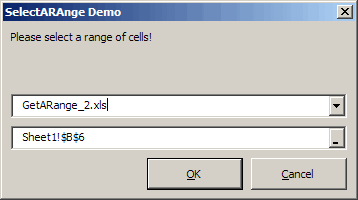
Selecting a range using the userform
The code that shows the form:
' Module : modWorkaround1
' Company : JKP Application Development Services (c)
' Author : Jan Karel Pieterse (jkp-ads.com)
' Created : 23-2-2009
' Purpose : Workaround for the application.inputbox (type 8) bug
'-------------------------------------------------------------------------
Option Explicit
Sub Test()
Dim oRangeSelected As Range
If SelectARange("Please select a range of cells!", "SelectARAnge Demo", oRangeSelected) = True Then
MsgBox "You selected:" & oRangeSelected.Address(, , , True)
Else
MsgBox "You cancelled"
End If
End Sub
Function SelectARange(sPrompt As String, sCaption As String, oReturnedRange As Range) As Boolean
Dim frmSelectCells As ufSelectCells
Set frmSelectCells = New ufSelectCells
With frmSelectCells
.PromptText = sPrompt
.CaptionText = sCaption
If TypeName(Selection) = "Range" Then
.StartAddress = Selection.Address(External:=True)
End If
.Initialise
.Show
If .OK Then
Set oReturnedRange = .ReturnedRange
If oReturnedRange Is Nothing Then
SelectARange = False
Else
SelectARange = True
End If
Else
SelectARange = False
End If
End With
Unload frmSelectCells
Set frmSelectCells = Nothing
End Function
The code behind the form:
Private mbOK As Boolean
Private moReturnedRange As Range
Private msPromptText As String
Private msCaptionText As String
Private msStartAddress As String
Public Sub Initialise()
Dim oBk As Workbook
cmbOK.Enabled = False
lblQuestion.Caption = msPromptText
Me.Caption = CaptionText
refSelectCells.Text = StartAddress
cbxWorkbooks.Clear
For Each oBk In Workbooks
If oBk.Windows(1).Visible Then
cbxWorkbooks.AddItem oBk.Name
End If
Next
cbxWorkbooks.Value = ActiveWorkbook.Name
End Sub
Private Sub cbxWorkbooks_Change()
Windows(cbxWorkbooks.Value).Activate
End Sub
Private Sub cmbCancel_Click()
OK = False
Me.Hide
End Sub
Private Sub cmbOK_Click()
If refSelectCells.Text <> "" Then
If TypeName(Selection) = "Range" Then
If IsValidRef(refSelectCells.Text) Then
OK = True
End If
End If
End If
Me.Hide
End Sub
Public Property Get OK() As Boolean
OK = mbOK
End Property
Public Property Let OK(ByVal bOK As Boolean)
mbOK = bOK
End Property
Public Property Get ReturnedRange() As Range
Dim sRef As String
Dim oSh As Worksheet
On Error Resume Next
sRef = refSelectCells.Text
If OK And IsValidRef(sRef) Then
If InStr(sRef, "!") Then
Set oSh = ActiveWorkbook.Worksheets(Application.Substitute(Left(sRef, InStr(sRef, "!") - 1), "'", ""))
Else
Set oSh = ActiveSheet
End If
Set moReturnedRange = oSh.Range(Mid(sRef, InStr(sRef, "!") + 1))
Set ReturnedRange = moReturnedRange
End If
End Property
Public Property Set ReturnedRange(oReturnedRange As Range)
Set moReturnedRange = oReturnedRange
End Property
Public Function IsValidRef(sRef As String) As Boolean
'-------------------------------------------------------------------------
' Procedure : IsValidRef Created by Jan Karel Pieterse
' Company : JKP Application Development Services (c) 2005
' Author : Jan Karel Pieterse
' Created : 21-12-2005
' Purpose : Checks of argument is a valid cell reference
'-------------------------------------------------------------------------
Dim sTemp As String
Dim oSh As Worksheet
Dim oCell As Range
' On Error GoTo LocErr
IsValidRef = False
On Error Resume Next
sTemp = Left(sRef, InStr(sRef, "!") - 1)
sTemp = Replace(sTemp, "=", "")
If Not IsIn(ActiveWorkbook.Worksheets, sTemp) Then
IsValidRef = False
Exit Function
End If
Set oSh = ActiveWorkbook.Worksheets(sTemp)
If oSh Is Nothing Then
Set oSh = ActiveWorkbook.Worksheets(Replace(sTemp, "'", ""))
End If
sTemp = Right(sRef, Len(sRef) - InStr(sRef, "!"))
Set oCell = oSh.Range(sTemp)
If oCell Is Nothing Then
IsValidRef = False
Else
IsValidRef = True
End If
End Function
Function IsIn(vCollection As Variant, ByVal sName As String) As Boolean
'-------------------------------------------------------------------------
' Procedure : funIsIn Created by Jan Karel Pieterse
' Company : JKP Application Development Services (c) 2005
' Author : Jan Karel Pieterse
' Created : 28-12-2005
' Purpose : Determines if object is in collection
'-------------------------------------------------------------------------
Dim oObj As Object
On Error Resume Next
Set oObj = vCollection(sName)
If oObj Is Nothing Then
IsIn = False
Else
IsIn = True
End If
If IsIn = False Then
sName = Replace(sName, "'", "")
Set oObj = vCollection(sName)
If oObj Is Nothing Then
IsIn = False
Else
IsIn = True
End If
End If
End Function
Public Property Let PromptText(ByVal sPromptText As String)
msPromptText = sPromptText
End Property
Private Sub refSelectCells_Change()
If IsValidRef(refSelectCells.Text) Then
cmbOK.Enabled = True
Else
cmbOK.Enabled = False
End If
End Sub
Public Property Get CaptionText() As String
CaptionText = msCaptionText
End Property
Public Property Let CaptionText(ByVal sCaptionText As String)
msCaptionText = sCaptionText
End Property
Private Sub UserForm_QueryClose(Cancel As Integer, CloseMode As Integer)
If CloseMode <> vbFormCode Then
Cancel = True
Me.cmbCancel.SetFocus
cmbCancel_Click
End If
End Sub
Public Property Get StartAddress() As String
msStartAddress = Mid(msStartAddress, InStr(msStartAddress, "]") + 1)
StartAddress = msStartAddress
End Property
Public Property Let StartAddress(sStartAddress As String)
msStartAddress = sStartAddress
End Property
Method 2: Use Application.InputBox anyway
The second method was suggested by Peter Thornton (also an Excel MVP).
It does use the Application.InputBox method, but uses type 0 instead of 8 and a helper function to extract a proper range from the entered string. Funny thing is, even though one uses type 0, the box still enables you to select cells.
The returned formula normally requires a little parsing before it will be recognized as a valid Range address. Therefore it makes sense to wrap all this in a function. This demo wrapper has two bonus features. Firstly, the developer has the option to re-activate the Input range. Secondly, if the user types an address instead of selecting cells, the user can make a couple of incorrect typo attempts without having to start all over, it happens!
The code to accomplish this is copied below:
'Courtesy Peter Thornton (Excel MVP)
Sub TestGetInput()
Dim bGotRng As Boolean
Dim bActivate As Boolean
Dim rInput As Range
bActivate = False ' True to re-activate the input range
bGotRng = GetInputRange(rInput, "Please select a range of cells!", _
"SelectARAnge Demo", "", bActivate)
If bGotRng Then
MsgBox rInput.Address(External:=True)
Else
MsgBox "You pressed cancel"
End If
End Sub
Function GetInputRange(rInput As Excel.Range, _
sPrompt As String, _
sTitle As String, _
Optional ByVal sDefault As String, _
Optional ByVal bActivate As Boolean, _
Optional X, Optional Y) As Boolean
' rInput: The Input Range which returns to the caller procedure
' bActivate: If True user's input range will be re-activated
'
' The other arguments are standard InputBox arguments.
' sPrompt & sTitle should be supplied from the caller proccedure
' but sDefault will be completed below if empty
'
' GetInputRange returns True if rInput is successfully assigned to a Range
Dim bGotRng As Boolean
Dim bEvents As Boolean
Dim nAttempt As Long
Dim sAddr As String
Dim vReturn
On Error Resume Next
If Len(sDefault) = 0 Then
If TypeName(Application.Selection) = "Range" Then
sDefault = "=" & Application.Selection.Address
' InputBox cannot handle address/formulas over 255
If Len(sDefault) > 240 Then
sDefault = "=" & Application.ActiveCell.Address
End If
ElseIf TypeName(Application.ActiveSheet) = "Chart" Then
sDefault = " first select a Worksheet"
Else
sDefault = " Select Cell(s) or type address"
End If
End If
Set rInput = Nothing ' start with a clean slate
For nAttempt = 1 To 3 ' give user 3 attempts for typos
vReturn = False
vReturn = Application.InputBox(sPrompt, sTitle, sDefault, X, Y, Type:=0)
If False = vReturn Or Len(vReturn) = 0 Then
Exit For ' user cancelled
Else
sAddr = vReturn
' The address (or formula) could be in A1 or R1C1 style,
' w/out an "=" and w/out embracing quotes, depends if the user
' selected cells, typed an address, or accepted the default
If Left$(sAddr, 1) = "=" Then sAddr = Mid$(sAddr, 2, 256)
If Left$(sAddr, 1) = Chr(34) Then sAddr = Mid$(sAddr, 2, 255)
If Right$(sAddr, 1) = Chr(34) Then sAddr = Left$(sAddr, Len(sAddr) - 1)
' will fail if R1C1 address
Set rInput = Application.Range(sAddr)
If rInput Is Nothing Then
sAddr = Application.ConvertFormula(sAddr, xlR1C1, xlA1)
Set rInput = Application.Range(sAddr)
bGotRng = Not rInput Is Nothing
Else
bGotRng = True
End If
End If
If bGotRng Then
If bActivate Then ' optionally re-activate the Input range
On Error GoTo errH
bEvents = Application.EnableEvents
Application.EnableEvents = False
If Not Application.ActiveWorkbook Is rInput.Parent.Parent Then
rInput.Parent.Parent.Activate ' Workbook
End If
If Not Application.ActiveSheet Is rInput.Parent Then
rInput.Parent.Activate ' Worksheet
End If
rInput.Select ' Range
End If
Exit For
ElseIf nAttempt < 3 Then
' Failed to get a valid range, maybe a typo
If MsgBox("Invalid reference, do you want to try again ?", _
vbOKCancel, sTitle) <> vbOK Then
Exit For
End If
End If
Next ' nAttempt
cleanUp:
On Error Resume Next
If bEvents Then
Application.EnableEvents = True
End If
GetInputRange = bGotRng
Exit Function
errH:
Set rInput = Nothing
bGotRng = False
Resume cleanUp
End Function
Both methods are demonstrated in this download.
Frequently asked Questions
What is the bug in the Application.InputBox function when getting a range from the user with VBA?
Which Excel versions are affected by the Application.InputBox bug?
Who discovered the bug in the Application.InputBox function?
How can the bug in Application.InputBox be reproduced?
What is the first method to work around the Application.InputBox bug?
How does the userform workaround for selecting a range work?
What is the second method to work around the Application.InputBox bug?
How does the Application.InputBox type 0 workaround function?
What causes the Application.InputBox function to return an empty range?
What issues might users face with the refedit control in the userform?
Comments