
Preventing auto_open and Workbook_Open events from running
Content
- Introduction
- Excel as a part of Microsoft 365
- Excel 2010, 2013, 2016
- Excel 2007 and up
- Excel 97, 2000, XP, 2003
Introduction
As a fulltime developer I oftentimes open files containing VBA and want to be able to run code. At the same time I sometimes want to prevent Workbook_Open event code or an Auto_Open macro from running. This little article shows you how to achieve that.
Why would you want to do this? Typically, I use this on my own files in which I am still developing. The Open event might contain code that takes a while to run, or configures the project in a way which I don't want to happen when I start working with the file.
If the file you opened using the methods described below contains other event handlers, note that these event handlers will remain disabled until you start a macro manually (by clicking a command button or a menu entry) or if a User Defined function in your code has been called.
I do not recommend using this method to open files from sources you do not know or trust. The VBA code can contain events which will eventually run and possibly cause trouble.
Excel as a part of Microsoft 365
I'm assuming your workbook has already been "trusted" or is in a trusted folder.
You can prevent the workbook_Open from running by clicking File, Open, Browse.
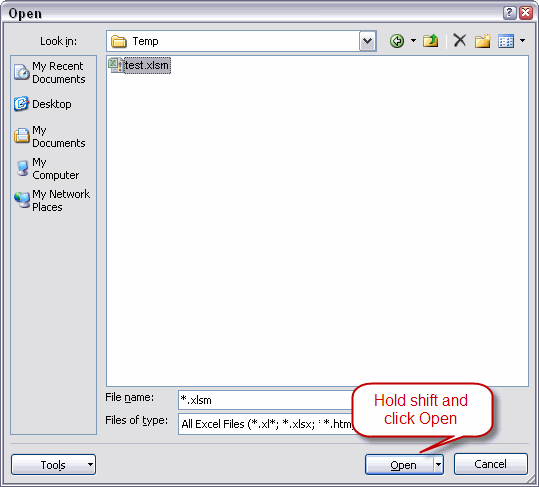
Then in the browse window select your file and hold down the Shift key when you click the Open button.
If you use the recent files list, holding Shift has no effect and macro's will run.
If you are unsure, or holding shift does not work for you (I'm not sure what Excel 2019, 2021 and 2024's behaviour is), here are some work-arounds:
Workaround 1, disable events
Open the VBA editor, press control+g
Paste this line into that window:
Application.EnableEvents = False
With your cursor on that line, press the Enter key. Now open the file in question.
Please note, that none of the application or workbook events will now fire so you'll have to set that value back to True to make that work again.
Workaround 2: Detect the shift key is down
If the workbook is yours and you just need a way to prevent the open event (or any other event for that matter) to do anything when the shift key is held down, you can use code similar to this:
#If VBA7 Then
Declare PtrSafe Function GetKeyState Lib "USER32" (ByVal vKey As Long) As Integer
#Else
Declare Function GetKeyState Lib "USER32" (ByVal vKey As Long) As Integer
#End If
Const SHIFT_KEY As Long = &H10
Function ShiftPressed() As Boolean
'Returns True if shift key is pressed
ShiftPressed = GetKeyState(SHIFT_KEY) < 0
End Function
Private Sub Workbook_Open()
If ShiftPressed Then Exit Sub
MsgBox "You did not hold down the shift key while the file was opened"
End Sub
Workaround 3: Detect a specific file in the same folder
Some colleagues of mine use this debugging technique. You simply place an empty textfile with a special filename into the same folder as the workbook. You can then use the Dir statement to detect whether that file is present:
If Len(Dir(ThisWorkbook.Path &
"SomeMadeUPFileName.txt") > 0 Then
'Do something
Excel 2010, 2013, 2016
Macro security set to low or trusted document
If you have set your macro security to "Enable All Macros" or you have already set the document to trusted or the document is in a trusted folder, click File, Open, select your file and hold down the shift key when you click the Open button:
Fig. 1: Selecting the file from the File, Open dialog (Excel 2010, 2013, 2016)
Of course your file might be listed in the Most Recently Used files (MRU) list. In that case, hold shift when you click the file in the list:
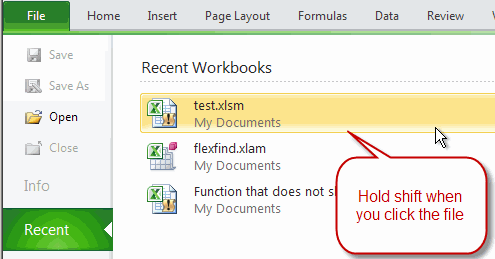
Fig. 2: Clicking the file on the MRU (Excel 2010)
Doing so will prevent the Workbook_Open event from firing and the Auto_Open macro from running.
Macro security set to prompt
If your document is not in a trusted folder, has never been set to be trusted and macro security is set to something other than enable all macros to run, you can repeat what I've shown above.
Normally, if you open such a document, Excel will show the security bar. In this situation however, due to you holding down shift, Excel shows this window:
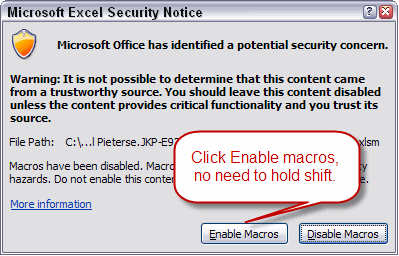
fig 3: Enable macros dialog (Excel 2010)
Because you held down the shift button when you clicked the file in the MRU or when you clicked the Open button, you can now just click "Enable macros" and no Automacros will run.
Excel 2007
Macro security set to low or trusted document
Note that this seems to fail if the trusted folder is on a network share!
If you have set your macro security to "Enable All Macros" or you have already set the document to trusted or the document is in a trusted folder, click File, Open, select your file and hold down the shift key when you click the Open button:
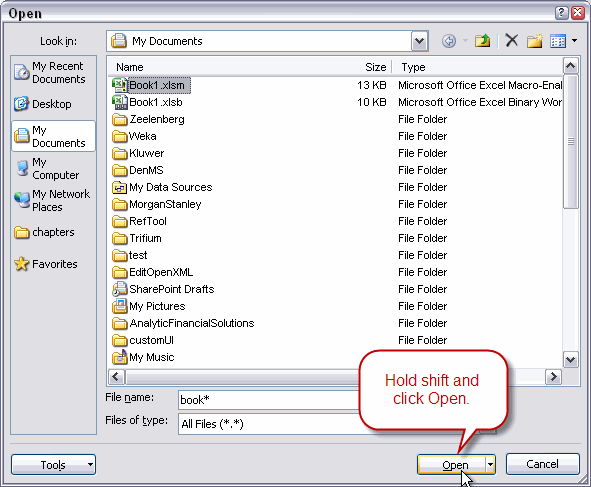
Fig. 4: Selecting the file from the File, Open dialog (Excel 2007 and up)
Of course your file might be listed in the Most Recently Used files (MRU) list. In that case, hold shift when you click the file in the list:
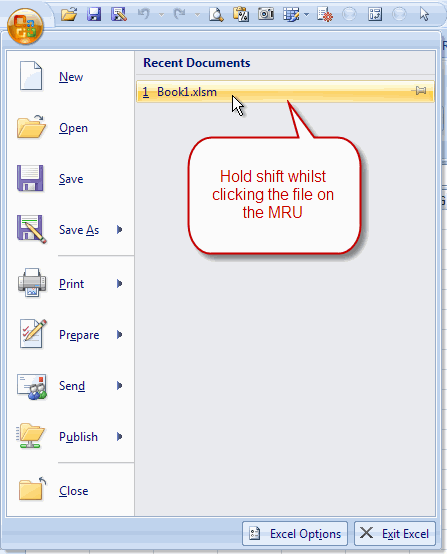
Fig. 2: Clicking the file on the MRU (Excel 2007 and up)
Doing so will prevent the Workbook_Open event from firing and the Auto_Open macro from running.
Macro security set to prompt
If your document is not in a trusted folder, has never been set to be trusted and macro security is set to something other than enable all macros to run, you can repeat what I've shown above.
Normally, if you open such a document, Excel will show the security bar. In this situation however, due to you holding down shift, Excel shows this window:
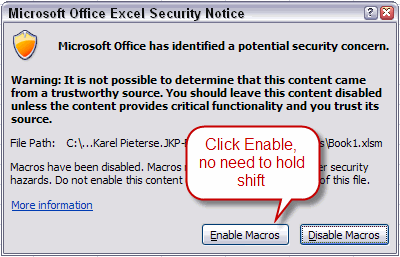
fig 3: Enable macros dialog (Excel 2007 and up)
Because you held down the shift button when you clicked the file in the MRU or when you clicked the Open button, you can now just click "Enable macros" and no Automacros will run.
Excel 97, 2000, XP, 2003
Macro security set to low or trusted document
In case your macro security is set to low, or your VBA code is signed and you have set the publisher as trusted, you must hold down the shift key when you click the Open button on the File, Open dialog:
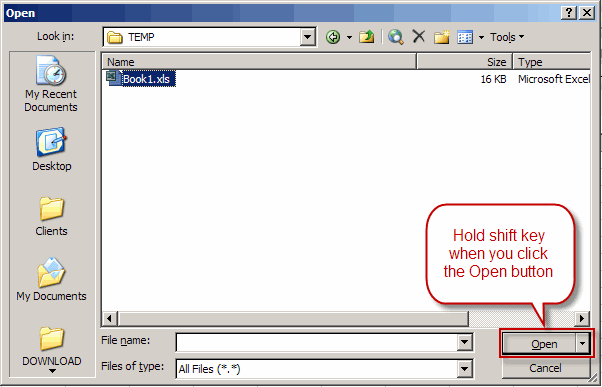
Fig. 7: Opening the file from the File, Open dialog (Excel 97-2003)
Of course your file might be listed in the Most Recently Used files (MRU) list. In that case, hold shift when you click the file in the list:
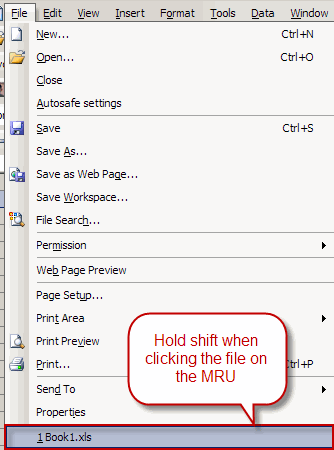
Fig. 8: Clicking the file on the MRU (Excel 97-2003)
Doing so will prevent the Workbook_Open event from firing and the Auto_Open macro from running.
Macro security set to medium or higher
If your macro security is set to al least "Medium" and you have never set its publisher to trusted (for a signed macro) you can forget about holding shift when opening the file or clicking the file on the MRU list. Instead, you must hold shift when you enable macros:
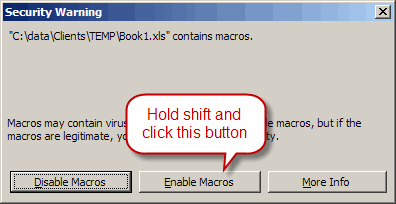
Fig.9: Hold shift when you press Enable macros
Doing so will prevent the Workbook_Open event from firing and the Auto_Open macro from running.
Frequently asked Questions
Why would you want to prevent Workbook_Open or Auto_Open macros from running?
How can you prevent Workbook_Open from running in Excel as part of Microsoft 365?
What is the effect of holding down the Shift key when opening a file in Excel?
What are some workarounds if holding Shift does not prevent macros from running?
Does holding Shift to prevent macros work on network shares in Excel 2007 and up?
How can you disable all events temporarily in VBA to prevent macros from running?
Comments