
Listing an Objects Properties and Methods
Introduction
If you do some VBA programming regularly, you'll be acquainted with the Object browser, which neatly shows you all objects, properties and methods belonging to any object in Excel (or any other library you have referenced in your VBA project).
Whilst this is a tremendous tool to look for information on just a couple of properties I find it not very handy when you e.g. need to get all of an objects properties into your VBA code.
So because I like a challenge I decided to build my own object browser, which is shown to you here.
Installing the tlbinf32 dll
This tool uses the tlbinf32.dll to fetch data from typelibraries. I grabbed some code from various places (amongst which Chip Pearson's great site and some newsgroup messages like this one) and created a userform with a treeview control (because this is the type of control that can show hierarchical information so nicely).
The help files of tlbinf32.dll can be downloaded here: tlbinf32.zip and the dll can be found here (not sure if you can use the download at will without any licensing issues though).
After downloading the dll it needs to be registered with windows:
32 bit Office
Click Start, run and type:
regsvr32 c:\YourPathToThedll\tlbinf32.dll
Click OK. If successful, Windows will tell you it successfully registered the dll.
64 bit Office
See this article on how to enable VBA to use the aforementioned dll.
What does the tool allow you to do?
In its basic state, you select any object in Excel and start the tool, which will show you the first level of objects, properties and methods of that selection. Here is what the UI looks like after starting the tool whilst you have a chart title selected:
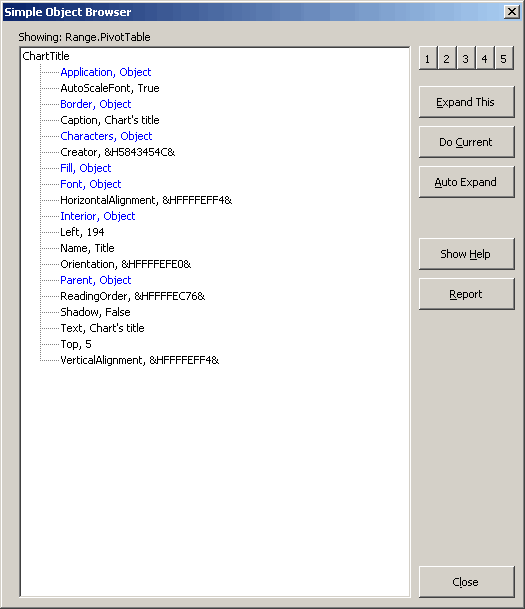
Tool's main window, showing members of a ChartTitle object
And here is the same window after expanding two of the object's members:
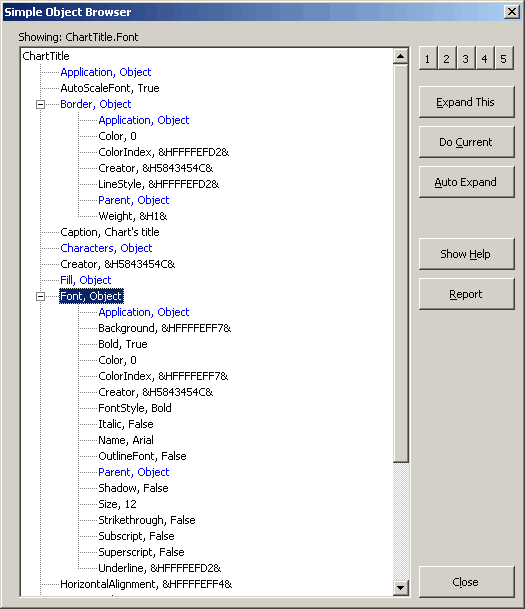
Main window after double clicking "Border" and "Font" objects.
As you can see, it is really easy to get a list of all objects and properties of an object.
What's even better is that you can get them into Excel easily. Clicking the "Report" button yields a list of all objects in the current display. Below a portion of those is shown:
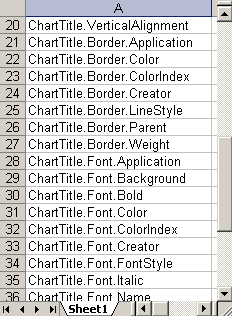
Result of clicking "Report".
You can imagine that now it is easy to copy this and paste it into the VBE to quickly create code that sets a lot of properties.
Download
I have made this tool available for download:
Frequently asked Questions
What is the purpose of the Object browser in VBA programming?
Why did the author decide to build their own object browser?
What is the tlbinf32.dll used for in this tool?
Where can I download the tlbinf32.dll and its help files?
How do I register the tlbinf32.dll on a 32-bit Office system?
How can I enable VBA to use tlbinf32.dll on a 64-bit Office system?
What functionality does the tool provide when selecting an object in Excel?
How does the tool display the properties and methods of an object?
What happens when you click the "Report" button in the tool?
Comments