Most Valuable Professional


View Jan Karel Pieterse's profile on LinkedIn subscribe to rss feed
Subscribe in a reader

Home > English site > Articles > Show Picture
Deze pagina in het Nederlands

Showing a picture from a list of pictures

Introduction

Many people keep part lists in Excel. Sometimes even with embedded pictures next to the part data.

This article demonstrates a method to show a picture on a sheet that changes when a different part number is chosen from the list of available part numbers.

Preparing the list

The first thing to do is to position the pictures properly. Each picture should go in a cell on the same row as a unique description (part number) of the part it pertains to.

Format the cells, so the picture fits in a single cell (either adjust the size of the picture, or adjust row height and column width):
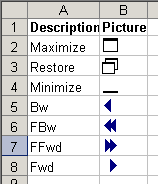
Figure 1, screenshot showing a list of icons next to their description

Preparing the sheet that shows the dynamic picture

We need some way of knowing which picture is to be shown. We start off by defining a dynamic range name that will expand automatically when we add new items to our list (assuming they are on Sheet1, starting on cell A1, with one row of headings) Choose Insert, name define (In Excel 2007 on the "Formulas" tab of the ribbon, in the "Defined Names" group, click the "Define Name" button) and define this name:

Name Refers to
PictureList =OFFSET(Sheet1!$A$1,1,0,COUNTA(Sheet1!$A:$A)-1,1)

Let us say cell A2 on sheet2 will be used to enter the picture code we want to see the picture from. The formula in the next defined name will point to the cell to the right of the cell who's picture name matches the text entered in cell Sheet2!A2:

Name Refers to
Picture =OFFSET(Sheet1!$B$2,MATCH(Sheet2!$A$2,PictureList,0)-1,0,1,1)

Creating the picture

Excel 2007

There are two methods to insert the proper picture in Excel 2007. One is by adding the camera tool to your QAT and using that, the other is shown below.

Select the cell where you want your dynamic picture to appear and click the Insert tab of the ribbon.  On the far right, find the "Object" button and click it (see screenshot below).
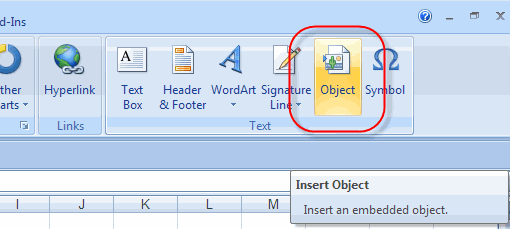

Figure 2, Insert Object button on the ribbon

The Insert object dialog appears:
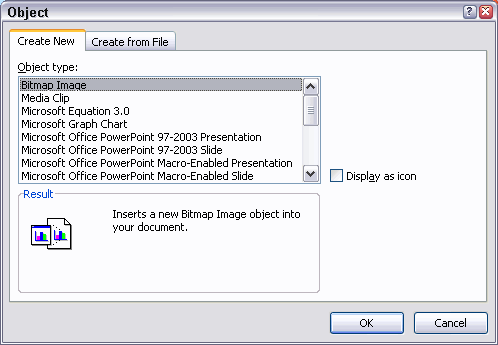

Figure 3, Object Dialog

Select the top option (Bitmap Image) and click OK. Hit escape to return to Excel. The newly inserted picture object should still be selected. The formula bar should show something like =EMBED("Paint.Picture";""). Click in the formula bar and replace the entire formula with this formula: =Picture
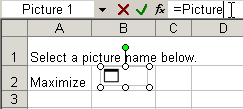

Figure 4, screenshot showing the picture's formula bar.

Hit enter or click the green checkmark to the left of the formula bar.

Excel 97 to 2003

Select the cell with the topmost picture. Hold down the shift key and click the Edit menu. It should show "Copy Picture...":
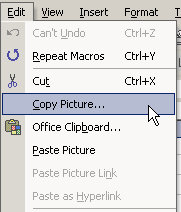
Figure 4, screenshot showing part of Excel's Edit menu when clicked whilst holding down the shift key.

Select "As shown on screen" from the next dialog and click OK.

Now navigate to the cell (on Sheet2 in this example) where you want to show the dynamic picture and hit the paste button (or control-v):
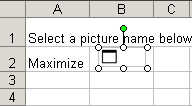
Figure 5, screenshot showing the pasted picture.

Figure 6, screenshot showing the pasted picture's formula bar.

Making the picture dynamic

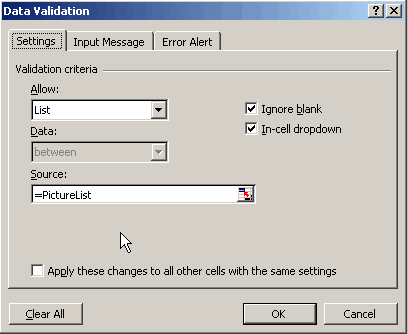
To simplify the selection of the picture description, we can use Data, validation:

Now you can select from the available picture descriptions:
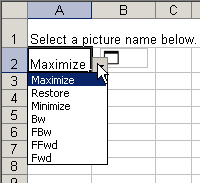
And we're done!

Download

Click here to download a sample file.

Other solutions

Bernie Deitrick came up with this nice sheet, which handles more pictures, but uses VBA


Comments

All comments about this page:


Comment by: viswanath (11/18/2008 5:27:24 AM)

ok it is fine but we are traid it can't show the picture
we written in the source as a picture list it shows the source path cannot be found pl give ur suggestion

Regards
Viswanath.


Comment by: Jan Karel Pieterse (11/18/2008 7:46:03 AM)

Hi viswanath,

Not sure what you are trying to accomplish, could you elaborate?


Comment by: viswanath (11/18/2008 8:06:28 PM)

Sir,
     We have a project in that total employee details can available once we select the emp.code its display total details of perticular emp.with photo. So that we used the above farmula in that source (picture list) can't taken and it shows "A named range you specified cannot be found" that's why we taken Ur file and completed the task but we need how to display the photo in required coloum. pl do the needful

With regards,
Viswanath.


Comment by: Jan Karel Pieterse (11/18/2008 10:17:07 PM)

Hi Viswanath,

Please send me your file so I can have a look. My email address is at the bottom of this page.


Comment by: vinod kumar (12/17/2008 12:14:59 AM)

Hi Sir,

This is vinod from India.

I need a small info regarding Excel. How to map the hyperlink sheet ( Word or Excel PP) in the cambo list.

Awaiting for your solution.

Vinod


Comment by: Jan Karel Pieterse (12/17/2008 2:19:02 AM)

Hi Vinod,

I am not sure I understand what you are asking, could you please explain a bit more?


Comment by: vinod (12/17/2008 2:52:01 AM)

Name of the Employee : Ram
suppose if i click the name of the person,Whole History of the particular person will apper in sheet. (history in form Word or Excel Or PP template).

how to link the sheet with name ( Vlookup) or any other method.


Comment by: Jan Karel Pieterse (12/17/2008 3:21:31 AM)

Hi Vinod,

You could use the VLOOKUP worksheet function to pull the relevant data from a table in Excel that holds the employee information. Look up VLOOKUP in Excel Help to find out more.


Comment by: Dan (12/17/2008 1:05:02 PM)

I'm not sure where the formulas go. I cant find them on your available download, nor do i fully understand from the explanation provided in the "Preparing the sheet that shows the dynamic picture" section of this page. In addition, Creating the image is not working for me. I consider myself fairly experienced with excel and I am having a really hard time wrapping my head around this. Thanks for any support.

Dan (Excel 2007)


Comment by: Jan Karel Pieterse (12/18/2008 1:10:07 AM)

Hi Dan,

The formulas go in range names, in Excel 2007 they are available through the Name Manager button on the formulas tab of the ribbon. That is also the way to find them in my sample file.

Regards,

Jan Karel


Comment by: Paco (2/7/2009 4:11:51 PM)

Hi Jan:

Great article and it has helped me to confirm a process I was trying ....
A quick question, though: is there any way of getting rid of the "frame" around the picture (i.e., the lines around the picture in cell B2 of Sheet2, in your example)?
The only way I have been able to do this is to fill the sheet with a gray background or by adjusting the brightness).
Any thoghts would be greatly appreciated ....

Regards,
Paco


Comment by: Jan Karel Pieterse (2/8/2009 10:47:48 PM)

Hi Paco,

Either you have a border set on the picture:
Rightclick picture, "Format picture", colors and lines tab, set line color to "No Line".

Or you have included the cell border with the picture. Select the sheet from where you took the picture, select Tools, options, view tab and uncheck gridlines.


Comment by: Josh (3/21/2009 8:47:39 AM)

Hello Jan,

Could you explain if this can be translated onto a form?

Thanks very much,

Josh


Comment by: Jan Karel Pieterse (3/21/2009 11:39:27 AM)

Ho Josh,

No, it can't. On a form you'd use the picture control and load the pictures from files.


Comment by: james jones (4/5/2009 5:51:59 AM)

is it possible using this method to have multiple changable images on a sheet dependant on list name?


Comment by: Jan Karel Pieterse (4/6/2009 12:46:55 AM)

Yes, but you'll have to create range names for each of them, which is a bit cumbersome.


Comment by: Todd G (5/11/2009 6:47:04 PM)

I'm trying to change your code about a bit, displaying the changing images on sheet 1 referring to the list of names and images on sheet 2. When I make a choice from the drop-down list, the image does not update automatically. I need to select the image, and re-enter the =Picture formula from the display. I can't work out where it's going wrong.

My sheets are basically the same, only swapped. Here's my definitions:
Picture: =OFFSET(Sheet2!$B$2,MATCH(Sheet1!$A$2,PictureList,0)-1,0,1,1)

PictureList: =OFFSET(Sheet2!$A$1,1,0,COUNTA(Sheet2!$A:$A)-1,1)

Any suggestions?


Comment by: Jan Karel Pieterse (5/12/2009 9:57:07 PM)

Hi Todd,

Maybe Excel doesn't think the range names need to be recalculated. Try this:

PictureList: =OFFSET(Sheet2!$A$1,1,0*NOW(),COUNTA(Sheet2!$A:$A)-1,1)


Comment by: Kyle (5/13/2009 7:17:01 PM)

Is it possible to have the Object display nothing when there is no selection in the picture list drop down menu?


Comment by: Jan Karel Pieterse (5/13/2009 11:34:58 PM)

Hi Kyle,

I think the simplest method is to have a picture named "Blank" and a Blank choice in the dropdown.


Comment by: Scott (7/7/2009 1:47:27 AM)

I followed your directions and code but the only way I can get the image to update once the drop down menu changes selection is to click in the formula bar and hit enter. Any ideas?


Comment by: Jan Karel Pieterse (7/7/2009 1:49:03 AM)

Hi Scott,

Is calculation perhaps set to manual?
Maybe the solution I suggested to Todd works:

Change the formula of this name :

PictureList
=OFFSET(Sheet2!$A$1,1,0*NOW(),COUNTA(Sheet2!$A:$A)-1,1)


Comment by: Jerome Angles (8/28/2009 9:18:10 AM)

Brilliant page. Still struggling with having no pictures displayed when customer open my form... but getting there.

Thx a mil!!

Jerome


Comment by: leila (10/9/2009 12:16:44 AM)

how can load picture to use in form with vlookup excel vba?


Comment by: Jan Karel Pieterse (10/9/2009 5:16:39 AM)

Hi Leila,

Not sure what you are asking. Do you want the picture to appear on a VBA Userform?


Comment by: George B. (11/30/2009 5:07:50 PM)

I'm trying to convert a number score into an icon multiple times on the same worksheet...think "Consumer Reports icons". I'm evaluating items in rows based on five criteria listed in columns. Each criteria score ranges from 0-4. The data I have for each item is numeric, but I want to display the icons. I attempted the above, but as you mentioned to James Jones on 4/6/09, you'd need to create a separate range name for each...50 items by 5 criteria, 250 in my case. Any suggestions for a better way?


Comment by: Jan Karel Pieterse (12/1/2009 8:29:58 AM)

Hi George,

If it is just icons you want to show, consider using the WINGDINGS font or one of the other symbolic ones (but all symbols need to be in the same font set).
You can use Insert, Symbol to view the available fonts and symbols.

Then use a nested set of IF functions to show the proper symbol. Format the cell with the formula wioth the proper WingDing font and you're done.


Comment by: Matt (1/3/2010 1:50:37 AM)

Having some trouble. I'm somewhat new to Excel but I'm currently creating a gear spreadsheet for a game I play. I have a sheet that is pretty much a huge database table with specific items and all the corresponding information for each item. I included a picture in the database for each item. I copy/pasted the picture into excel from a website.

Now on another sheet I have drop down boxes for each particular gear slot that fills in the corresponding information when I make a selection. Example: Drop down box for Helmets contains a list of all the available helmets from my database on the previous sheet and fills in the stats for the helmet I select.

Everything works okay except for the picture. I've tried your method and a few other methods and no matter what I do I can't get the pictures to come up with the rest of the information.

Thank you in advance for your help.


Comment by: Jan Karel Pieterse (1/3/2010 11:42:00 AM)

Hi Matt,

Do you need to show just one (changing) picture, or multiple pictures of multiple parts?


Comment by: Matt (1/3/2010 8:12:25 PM)

One changing picture per drop down box. There are 15 different gear slots, all having their own row with separate drop down boxes. Exactly like your example only instead 1 there would be 15 unique boxes to choose from.

Example: Drop down box 1 is for the helmets
         Drop down box 2 is for the chest.
         Drop down box 3 is for the gloves.


Comment by: Jan Karel Pieterse (1/3/2010 11:24:11 PM)

Hi Matt,

I expect it will prove easier to use the technique shown here:

www.mcgimpsey.com/excel/lookuppics.html


Comment by: Matt (1/4/2010 3:29:14 PM)

Tried that one already... do you think it has anything to do with the fact that the pictures are copied and pasted onto the worksheet rather than "inserted" from a file?


Comment by: Matt (1/4/2010 5:25:30 PM)

Also I was wondering if its possible to keep the same font color from your data table when you select things from a drop down box... say my data table has a mix of items with blue font and purple font... when i pull the info up from the drop down box they default to black. I know you can edit the cell with the drop down box to show a certain color... but there would be different colored font for specific items in the drop down box.


Comment by: Jan Karel Pieterse (1/5/2010 2:23:05 AM)

Hi Matt,

McGimpsey's file assumes the pictures are within the file, on the sheet where you want them to show up. You do need to create a list of the picture object names (you can see them in the name box when you select a picture) next to their associated lookup codes. But the example is directed at a single picture, that is correct.

I could help you set things up for multiple pictures if you email me a copy of your file.

On the color of the dropdown: I do not think that can be done. It is either all black or all blue or all red, different colors for different entries are not possible as far as I know.


Comment by: Matt (1/7/2010 10:35:53 AM)

Thanks a ton for your help, works perfectly!!


Comment by: Morgan (2/17/2010 9:47:40 PM)

Hi! I have tried the solution at
www.mcgimpsey.com/excel/lookuppics.html
but in my case, I need to put a different pic in eacch of many different cells on the sheet (as many as 500 or so.)
THe List of pics is the same for each case, I just need a way to have a select box for each of these 500 or so cells.
Can you help me with this?
Best,
B. Morgan


Comment by: Jan Karel Pieterse (2/22/2010 7:31:14 AM)

Hi Morgan,

I'm afraid my solution is only useful if you have only a cuople of dynamic pictures you want to show from a list of pictures. Is that what you have?


Comment by: B. Morgan (2/23/2010 5:19:17 PM)

There are about 50 pictures.
There may be as many 500 cells in each of which I want to select one of the 50 or so pictures.
Each picture may appear in more than one of the 500 cells.
Imagine that these are slots in a motherboard of a computer.
In some slots I want one type of memory board, in others another memory type, in one a cpu type, in another a MADI IO board, etc.


Comment by: Jan Karel Pieterse (2/23/2010 11:05:36 PM)

Hi Morgan,

Suppose your pictures are on sheet "Pictures" (Unique names in column A, pictures in cells in column B). Make sure each picture is completely contained within a cell in column B.
Put this code behind the sheet in which you want to show them:

Private Sub Worksheet_Change(ByVal Target As Range)
    Dim oPic As Picture
    Dim oCell As Range
     With Target
        On Error Resume Next
        Set oCell = Sheets("Pictures").UsedRange.Find(What:=.Value, After:=Sheets("Pictures").Range("A1"), LookIn:=xlFormulas, _
                                                                 LookAt:=xlWhole, SearchOrder:=xlByRows, SearchDirection:=xlNext, _
                                                                 MatchCase:=False, SearchFormat:=False)
        If Not oCell Is Nothing Then
            For Each oPic In Me.Pictures
                If oPic.TopLeftCell.Address = .Offset(, 1).Address Then
                    oPic.Formula = "=" & oCell.Offset(, 1).Address(external:=True)
                    Exit For
                End If
            Next oPic
        End If
    End With
End Sub


On the sheet where you want to show them, you need two columns. The first column holds the name of the item to show, the second column holds a picture object from the drawing toolbar, with it's top-left corner INSIDE that cell. Set up those picture objects as described in this article and paste the code shown above in the VBA code module belonging to the worksheet in question.


Comment by: Gert Fourie (3/11/2010 11:55:03 PM)

Hi -

I am using excel 2007. I have tried your example but the pictures do not display. Any advice? I can send you my file.

Thanx


Comment by: Jan Karel Pieterse (3/13/2010 10:50:34 AM)

Hi Gert,

You can send me the file, but it may take quite some time before I respond because I'm a bit tied up doing paid work :-)


Comment by: Johnny (3/15/2010 12:48:55 PM)

I'm looking to load PNG images embedded in a worksheet onto a userform image control. I'm using loadpictureGDI function from a MS MVP and have no problem loading a file from disk.

I am having trouble with the syntax to set me.image_1.picture to an an image embedded in a worksheet.

Tried me.image_1.picture = worksheet(1).shapes(2).picture

Any ideas?


Comment by: Jan Karel Pieterse (3/16/2010 11:12:46 AM)

HI Johnny,

The only way I know is by placing an image on top of a chart, then using the Export method of the chart object to save the chart as an image and finally, using your loadpicturegdi method.


Comment by: Muhammad Sami (4/18/2010 3:16:57 AM)

I want to use formula vlookup to add picture in excel but in one cell one picture also please tell me how to convert somany jpg picture into text file by using ms dos


Comment by: Jan Karel Pieterse (4/18/2010 3:17:52 AM)

Hi Muhammad Sami,

WHat exactly do you mean by converting jpg pictures to text file?


Comment by: Salahuddin (4/20/2010 10:37:04 AM)

Hi, i m trying ur example but can't do it.could u send me an example by using a picture in Excel 2003. Specialy i m not understood in preparing the list. The symble of pictures come from where?


Comment by: Jan Karel Pieterse (4/20/2010 10:11:19 PM)

Hi Salahuddin,

The article comes with an example file to download. See the section called "Download".


Comment by: Sam (6/15/2010 10:21:46 AM)

Hi, your site helped me alot, but I have a problem when I print the excel sheet. The printed image shows 3 of the images I have on my picturelist when its supposed to only have one of the picture om my picturelist. The difference between the one that I made and yours is that my pictures are bigger. And sometimes the image doesn't even appear when I print. Please help.


Comment by: Jan Karel Pieterse (6/16/2010 12:31:11 AM)

Hi Sam,

You can send me the file, I'll have a quick look free of charge.


Comment by: Allison (6/16/2010 7:50:04 AM)

Hi,
I used this method to create a worksheet with dynamic pictures in Excel 2003 and it worked perfectly. I recently had Excel 2007 installed, and the dynamic pictures still work great. However, I am not having a problem with the dynamic picture order (which was not a problem in Excel 2003). I cannot get the picture "order" to "send to back". It is always in the front, and I cannot layer stuff on top of it. Do you know why this is and if there is a way to work around this? I have tried lots of things.. and can't seem to find a solution.

Thanks for your help,
Allison


Comment by: HROGO (6/25/2010 1:48:44 PM)

brilliant!!! I like the way you solved the problem, simple yet effective.


Comment by: Louise (7/8/2010 11:18:25 AM)

Many thanks - just what I needed and an easy solution(but only easy because of your very clear instructions).


Comment by: Jan Karel Pieterse (7/8/2010 11:18:50 AM)

Hi Louise,

You're welcome!


Have a question, comment or suggestion? Then please use this form.

If your question is not directly related to this web page, but rather a more general "How do I do this" Excel question, then I advise you to ask your question here: www.eileenslounge.com.

Please enter your name (required):

Your e-mail address (optional but if you want me to respond it helps!; will not be shown, nor be used to send you unsolicited information):

Your request or comment:

To post VBA code in your comment, use [VB] tags, like this: [VB]Code goes here[/VB].