
|
Microsoft Office Application Development
|
|
Listing an Object's Properties and MethodsIntroductionIf you do some VBA programming regularly, you'll be acquainted with the Object browser, which neatly shows you all objects, properties and methods belonging to any object in Excel (or any other library you have referenced in your VBA project). Whilst this is a tremendous tool to look for information on just a couple of properties I find it not very handy when you e.g. need to get all of an objects properties into your VBA code. So because I like a challenge I decided to build my own object browser, which is shown to you here. What does it do?This tool uses the tlbinf32.dll to fetch data from typelibraries. I grabbed some code from various places (amongst which Chip Pearson's great site and some newsgroup messages like this one) and created a userform with a treeview control (because this is the type of control that can show hierarchical information so nicely). The help files if tlbinf32.dll can be downloaded here: http://support.microsoft.com/kb/224331 and the dll can be found here (not sure if you can use the download at will without any licensing issues though). In it's basic state, you select any object in Excel and start the tool, which will show you the first level set of objects, properties and methods of that selection. Here is what the UI looks like after starting the tool whilst you have a chart title selected:
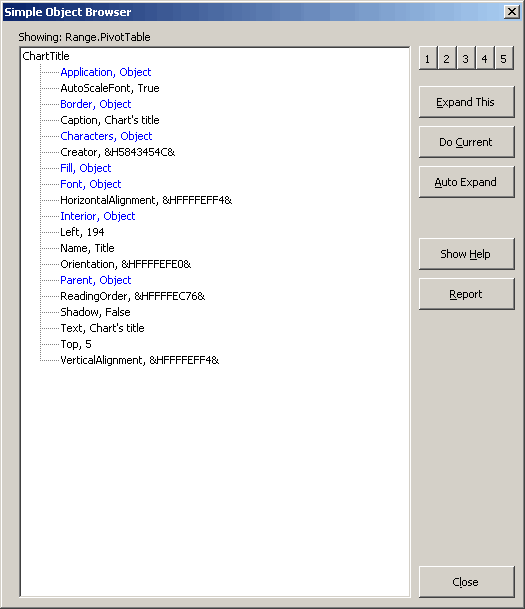
And here is the same window after expanding two of the object's members:
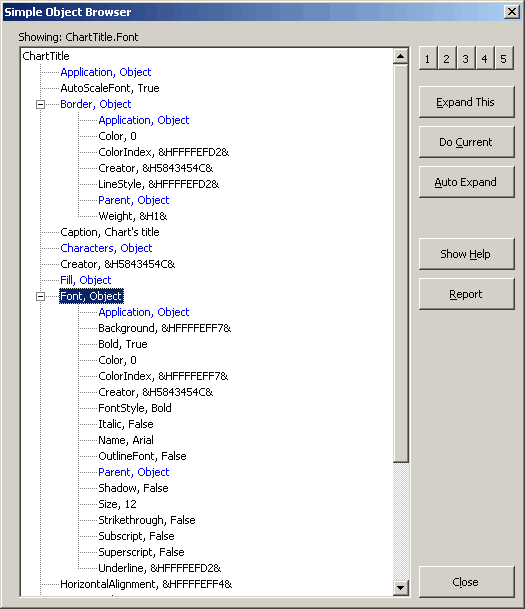
As you can see, it is really easy to get a list of all objects and properties of an object. What's even better is that you can get them into Excel easily. Clicking the "Report" button yields a list of all objects in the current display. Below a portion of those is shown:
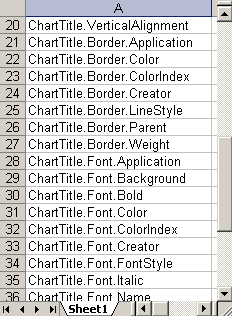
You can imagine that now it is easy to copy this and paste it into the VBE to quickly create code that sets a lot of properties. DownloadI have made this tool available for download: FeedbackSince you have managed to reach the end of this article, maybe you would care to write me a small message, expressing your opinion on this tool? Click here to write an email message to me. You may also rate this article: (Rated: 306 times, average rating: 6.4)![]() ![]() ![]() ![]() ![]() ![]() ![]() ![]() ![]()
CommentsShowing last 15 comments of 29 in total (Show All Comments):Comment by: xMRG (5/22/2007 9:37:30 AM)Looks great! I got it to work. Pascal, do this Go to the Start menu and select Run Type the following line into the ComboBox regsvr32 tlbinf32.dll Press Ok and it should work. BTW, I put the tlbinf32.dll in C:\WINDOWS\system32 Hope this helps. Comment by: Jan Karel Pieterse (5/22/2007 10:07:45 AM)Hi xMRG, Pascal, Thanks for sharing the solution guys. I had planned to add this information but you guys beat me to it! Comment by: Jim McClelland (5/24/2007 2:57:23 PM)I am struggling with an issue which seems related to this thread. I am trying to determine a simple way to assign an object to another object. IOW, I'd like to copy all of the properties of one object to another one. For example, in VBA, copying the guts of one "FormatCondition" object to a new FormatCondition. Have any of you encountered this issue before? Comment by: Jan Karel Pieterse (5/24/2007 9:22:19 PM)Hi Jim, Yes I have and the tool is very useful for that. You must however do this manually. Open the module modMain and modify this line in StartForm: Set .ObjectToList = Selection to: Set .ObjectToList = Selection.FormatConditions(1) Select any cell with a CF and run the ObjectLister tool. Expand the found list down to its deepest level (2 I think) and click report. From there you can use Excel formulas to build your code. Comment by: Troy (12/17/2007 7:44:05 AM)Incredible tool! This was obviously a huge amount of work! However, I don't see the methods (e.g. Range.Activate; or Range.Columns.Autofit)??? Comment by: Jan Karel Pieterse (12/17/2007 11:32:38 AM)Hi Troy, Indeed, it only shows properties and sub-objects. Methods are omitted. Shouldn't be very hard to add though. I'll leave that as an exercise for you :-) Comment by: Dean (1/8/2008 7:59:35 PM)Great piece of kit. Infinitely useful when trying to track down tricky properties. Comment by: Hal (2/16/2008 5:04:15 PM)Is there a virus in ObjectLister 003.xls ?? While running control-alt-O after selecting your demo chart, and auto expanding to the maximum depth (5?) I found the code after a couple of minutes elicited symptoms of a virus (?)that was trapped by Outlook warning me that a program was trying to read the address book. Comment by: Jan karel Pieterse (2/17/2008 3:59:48 AM)Hi Hal, I just checked Objectlister 32 using Nod32: Scanned disks, folders and files: C:\data\ObjectLister\ObjectLister 003.xls Number of threats found: 0 Comment by: Eric (3/14/2008 3:25:40 PM)Excellent work, once again. Is there an Object that corresponds to current Watches in the VBE? If there was, I'd like to change (in my copy) "Selection" in the "Set .ObjectToList = Selection" line to whatever it would be. Of course, I could do it one-by-one, but it would be more convenient if there was a Watches object. Comment by: Jan karel Pieterse (3/16/2008 10:13:37 PM)Hi Eric, No, I don't think there is. Comment by: Bruno (5/16/2008 12:56:08 PM)Hallo Jan, a really wonderful tool - it works perfect on the Excel-sheet and helps to save a lot of time. Many thanks for your work! Does there exist a similar tool for the VBE-objects of a userform? Comment by: Jan Karel Pieterse (5/18/2008 3:12:49 AM)Hi bruno, No, but you do not need a separate tool. You can insert a userform in the objectlister VBAProject with just one control (the one you want listed) and change the routine in modMain like this: Change this line: Set .ObjectToList = Selection To: Set .ObjectToList = UserForm1.Controls(1) Comment by: Bruno (5/18/2008 3:00:20 PM)Hello Jan, many thanks for your help. I have tried your instructions with the sample userform1 within your object lister Project and changed the above mentioned line. I started "startform", but it produces the following error: Error -2147024809; Ungültiges Argument in Startform.Module.modMain and the procedure stopped in the changed line. Do you have any idea? At the moment it would be very helpful for me, because Excel produced an error in my program (the exit-event will not be fired anymore in my existing userforms), so i have to build them again). Greetings from the Allgäu Bruno Comment by: Jan Karel Pieterse (5/18/2008 11:58:35 PM)Hi Bruno, Sorry, I did not test the code. This does work with a commandbutton called CommandButton1 on the form called Userform1: Set .ObjectToList = UserForm1.CommandButton1 Add a comment too!!! | ||||||||||||||
|
Use the contact page to issue
questions or comments about this website. |