
JKP Application Development Services.

                    Microsoft Office Application Development

Transpose Table

Up • Defined Names • Corrupt Files • Create Addins • Startup Problems • Chart an Equation • Show Picture • Round2Digits • Control Events • Custom Find • FormulaWrapper • Disable Events • Workbook Open Bug • WebQuery • Register UDFs • Undo With Excel VBA • Select a range (VBA) • Transpose Table • Docking VBE Windows • Excel 2007 Tables • Excel 2007 Tables (VBA) • Update An Addin • Addin Installation • Object Lister • Excel 2007 FileFormat • Catch Paste • Listbox AutoSize

•  •

Search Zoeken

WWW
This site

Go to Ga Naar
Home
Up

Donate Donaties
Did you find something helpful on my site? Consider a donation!
Heeft u iets gevonden waar u wat aan had? Overweeg dan een donatie!


Transposing the Formulas in a Table of Cells

Recently someone asked me if it was possible to transpose a table of cells, but in such a way that the formula of each cell is kept intact. I decided VBA was the way to go and produced a small but very useful little routine for that.

Imagine the following table:
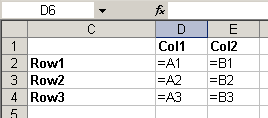
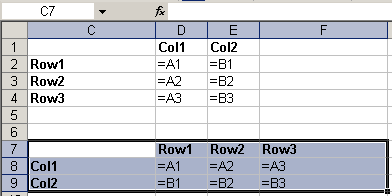
Now I'd like to transform that table into this one (see highlighted range):
If you try a copy > paste special > formulas > transpose, this is what you get:
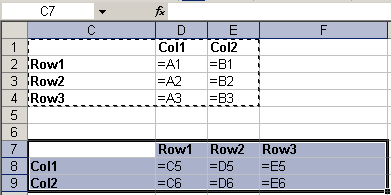
But it is not what we want, is it.

With the following piece of VBA, you can easily transpose your table, without garbling your formulas:

Option Explicit

Sub TransposeFormulas()
    Dim vFormulas As Variant
    Dim oSel As Range
    If TypeName(Selection) <> "Range" Then
        MsgBox "Please select a range of cells first.", _
                vbOKOnly + vbInformation, "Transpose formulas"
        Exit Sub
    End If
    Set oSel = Selection
    vFormulas = oSel.Formula
    vFormulas = Application.WorksheetFunction.Transpose(vFormulas)
    oSel.Offset(oSel.Rows.Count + 2).Resize(oSel.Columns.Count, oSel.Rows.Count).Formula = vFormulas
End Sub

So how does this work?

First we check whether a range of cells has been selected, otherwise the code will produce a runtime error:

    If TypeName(Selection) <> "Range" Then
        MsgBox "Please select a range of cells first.", _
                vbOKOnly + vbInformation, "Transpose formulas"
        Exit Sub
    End If

Next, we store the selected cells in an object variable (which is not really necessary), so we can work with that set of cells:

    Set oSel = Selection

Now the formulas of these cells are pulled into a variable of type Variant in one go:

    vFormulas = oSel.Formula

If you step through the code (using my example) the Locals window of the Visual Basic Editor (VBE) shows this for the variable vFormulas after executing the statement above:
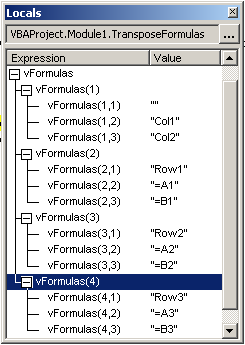
As you can see, vFormulas is a 4*3 array.

Next we want to swap rows and columns of the vFormulas variable, for which I use the Transpose worksheet function:

    vFormulas = Application.WorksheetFunction.Transpose(vFormulas)

The structure of vFormulas changes to this:
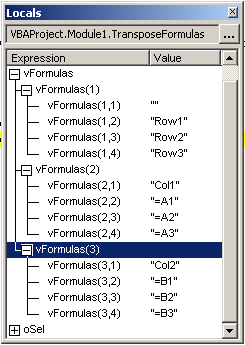
Presto! We now have a 4 * 3 array.

Finally, we need to push back the formulas to the worksheet. To be able to do that, we must specify a target range of the exact dimensions as the array variable. For that I use the Resize method. Note I also move down a couple of cells using Offset, so the copy of the table is placed 2 rows below the original:

    oSel.Offset(oSel.Rows.Count + 2).Resize(oSel.Columns.Count, oSel.Rows.Count).Formula = vFormulas

Done!

Comments

Please rate this page:

(Rated: 484 times, average rating: 6.3)

Showing last 15 comments of 17 in total (Show All Comments):


Comment by: BK. Wibowo (9/19/2006 9:36:04 PM)

It also can be done by:

Select Range,

Ctrl+H

Find: =

Replace with: blablabla=

Transpose

Select Range again,

Ctrl+H

Find: blablabla=

Replace with: =

The formula will remain the same


Comment by: Jan Karel Pieterse (9/20/2006 6:25:19 AM)

Hi BK,

Thanks for your addition.

I did know that one. I deliberately show the VBA method here, because it also shows how to push a range of cells into a VBA variant variable and vice-versa.


Comment by: Raja (9/21/2006 10:33:36 AM)

Excelent example Jan. I think it will help a lot when you create reports (what I always do) and your boss needs reports in different style (for some reason).


Comment by: Chris (9/28/2006 5:45:32 AM)

Very nice. My only critique is that you use an Exit Sub (a Goto by any other name is still a Goto).

Helpful indeed. I will have to keep this one filed away for future use.


Comment by: Jan Karel Pieterse (9/28/2006 6:26:41 AM)

Hi Chris,

Good point. I do use this on occasion, because I prefer it to an If-Then-Else construct that spans almost the entire subroutine. I find those to more confusing than a sparsely used Exit sub when a certain "vital" test fails.

But that is a matter of personal preference I guess.


Comment by: Ufuk (1/18/2007 1:04:41 AM)

That's perfect, this macro help me a lot to complate a work, thank you very much!


Comment by: Derek Turner (1/27/2007 7:55:12 AM)

Sub TransposeSelection()

'

TransposeFormulae Selection

End Sub

Sub TransposeFormulae(oSelection As Object)

'

If TypeName(oSelection) = "Range" Then

With oSelection

.Offset(.Rows.Count + 2).Resize(.Columns.Count, .Rows.Count).Formula = Application.Transpose(.Formula)

End With

Else

MsgBox "Please select a range of cells first.", vbOKOnly + vbInformation, "Transpose formulae"

End If

End Sub

However, this fails in Excel 2002 with a Type Mismatch if any cell contains a string longer than 255 characters. It will also fail with multiple selections but this can be trapped with .Areas.Count


Comment by: Cale Maddy (4/7/2007 10:22:29 AM)

Thank you so much for the select range, Ctrl-H method. I don't have a clue about visual basic and you just saved me an enormous amount of time.


Comment by: lennox de ronde (5/31/2007 5:11:48 PM)

it can be don much more simple

when you make the formula use $+cell reference and then perform the transpose depending on the tranposeyou use cell$ of $cell

lennox, thanks anyway


Comment by: Jan Karel Pieterse (5/31/2007 9:25:21 PM)

Hi Lennox,

You're correct if you did set up those absolute references properly. But how often have people NOT done that...

And my example always works, even with mixed references.


Comment by: John Salkeld (7/19/2007 3:45:15 AM)

Very interesting - It would be of interest to include array formulae in this application


Comment by: rodstar (1/9/2008 6:30:32 AM)

great solution!

any tutorial teaching how to program this code into Excel? I know a little about coding, but never did anything using VBE.

Other option is offer a xls to download and use the macro.

thanks.

r


Comment by: Jan Karel Pieterse (1/9/2008 10:41:14 AM)

Hi rodstar,

Just open the VBE (alt+F11), insert a module (Insert, Module) and paste in the code shown above.

Then return to Excel. Select the range you want processed, hit alt+F8 to get to the macro list and run the macro called TransposeFormulas


Comment by: Daničle Questiaux (4/18/2008 12:35:54 AM)

As you say very well, your example first is useful(!), but is also one of those examples that clarifies the steps used in VBA, and that is priceless!

Thanks!

All the added comments are also a great idea to have for novices at VBA (I/m one of them).


Comment by: colin (4/21/2008 7:45:15 AM)

Thanks Lennox, the original answer was a little intimidating for the layman


Add a comment too!!!

Please enter your name (required, will be shown):

Your E-Mail address (optional; will not be shown, nor be used to send you unsolicited information):

Your comments on this page (will be shown):

    Subscribe in a reader

powered by longhead.com

Use the contact page to issue questions or comments about this website.
Copyright © 2003-2007 JKP Application Development Services.