
The Excel File Format
Pages in this article
Working With Worksheet Data In An Excel xlsx/xlsm File
In this chapter I'll explain how you can read and write to a cell on a worksheet by editing the xml inside an Excel file's internals directly.
Finding the proper worksheet
First a tip about how to get at the content. An Excel xlsx/xlsm file is nothing more than a zip container which holds a couple of folders and files. You can view those simply by adding .zip behind the filename. Then you right-click the file and select Explore.
The XML package in an Excel 2007 file is structured like this:
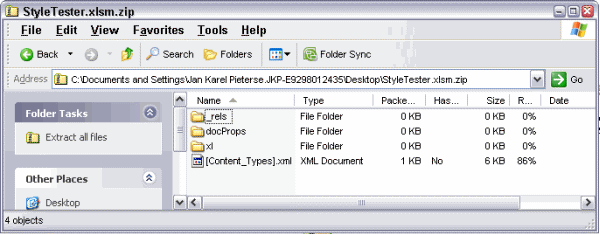
Contents of an Excel xlsm file.
In this structure, we need to dive into the "xl" folder, which (in the sample file I created) contains:
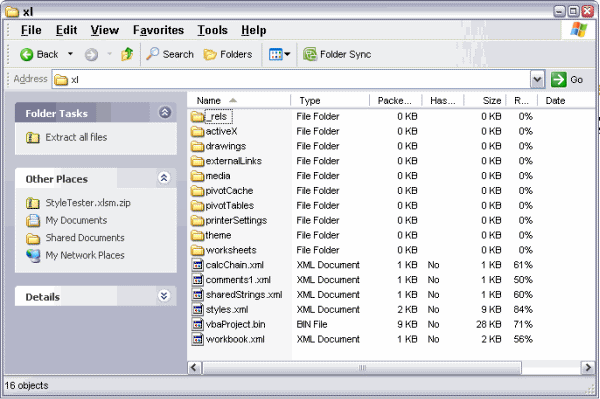
Contents of "xl" folder
The file Workbook.xml contains this section which is relevant to this chapter:
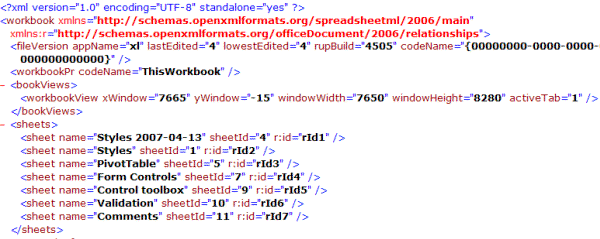
Part of the XML in "Workbook.xml"
Let's assume we want to add something to the worksheet "Comments". We must find which xml file contains its data. Key element here is the r:id part in the xml shown above, the r:id of worksheet "Comments" equals "rId7".
In the folder xl\_rels there is a file called "Workbook.xml.rels", which contains this snippet of xml:
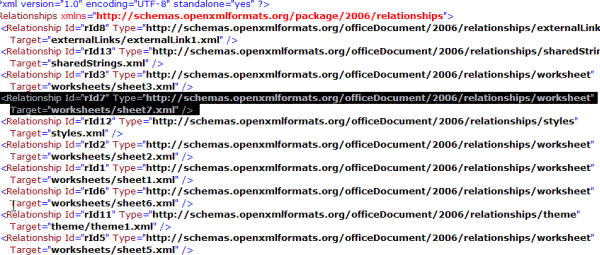
Section in "Workbook.xml.rels" which shows us which file belongs to our
worksheet
As can be seen, the worksheet "Comments" (rId7) is represented by a file named "sheet7.xml", which is one of the files listed in the folder "worksheets":
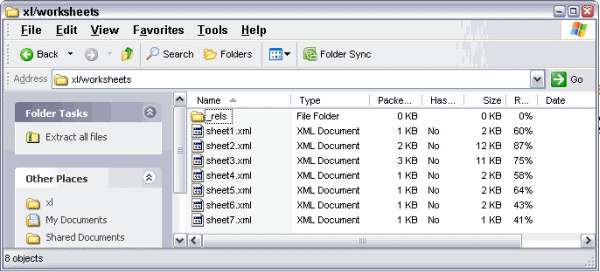
folder xl\worksheets showing its contents
Reading a cell's value
The worksheet "Comments" contains this:
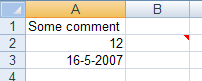
Content of worksheet "Comments" (cell B2 contains a cell comment)
Which in turn is reflected in sheet7.xml as:
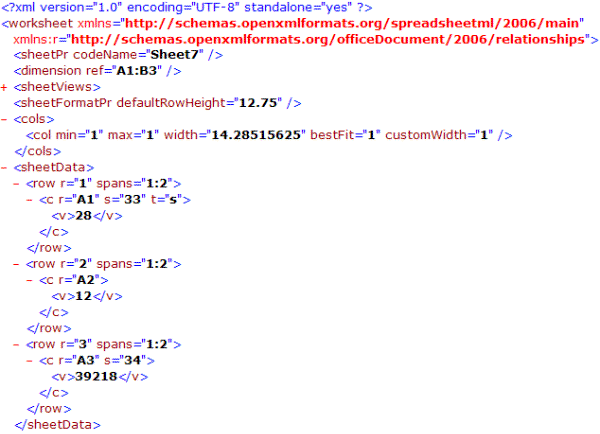
XML in sheet7.xml (irrelevant part collapsed) showing cells A1, A2 and
A3
Suppose we’re interested in the content of cell A1. How do we find that content?
Because it says: <c r="A1" t="s">
We know that cell A1 contains a string (t="s"). The next line: <v>28</v> tells us, we need to find the item with index 28 inside the file called "xl/SharedStrings.xml"
The top of that file looks like this:
<?xml version="1.0" encoding="UTF-8" standalone="yes" ?>
<sst xmlns="http://schemas.openxmlformats.org/spreadsheetml/2006/main"
count="41" uniqueCount="46">
So there are 46 unique strings in this workbook. Since the index starts at zero and the sheet7.xml says we need index # 28, we need the 29th "<si>" entry in that XML file:
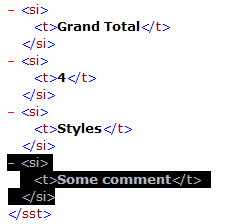
Not very hard!
Adding Text to a cell
Now suppose we want to add a new text entry to a row in sheet "Comments"?
Let’s also assume the text is not yet included in the SharedStrings.xml file.
First we modify the string count at the top of that file. Change:
<?xml version="1.0" encoding="UTF-8" standalone="yes"
?>
<sst xmlns="http://schemas.openxmlformats.org/spreadsheetml/2006/main"
count="41" uniqueCount="46">
to:
<?xml version="1.0" encoding="UTF-8" standalone="yes"
?>
<sst xmlns="http://schemas.openxmlformats.org/spreadsheetml/2006/main"
count="42" uniqueCount="47">
Now we can add our new string to this file. At position 29 of the file insert:
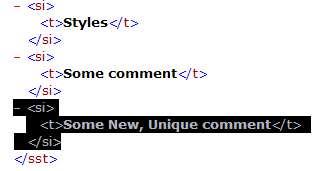
Addition of a new string in the sharedStrings.xml file
Done with sharedStrings.xml. Now to the changes in sheet7.xml.
Here is the relevant part of the sheet7.xml file again:
<row r="1" spans="1:2">
<c r="A1" s="33" t="s">
<v>28</v>
</c>
</row>
<row r="2" spans="1:2">
<c r="A2">
<v>12</v>
</c>
</row>
<row r="3" spans="1:2">
<c r="A3" s="34">
<v>39218</v>
</c>
</row>
To add a row with our new string, we add the bold part:
<row r="1" spans="1:2">
<c r="A1" s="33" t="s">
<v>28</v>
</c>
</row>
<row r="2" spans="1:2">
<c r="A2">
<v>12</v>
</c>
</row>
<row r="3" spans="1:2">
<c r="A3" s="34">
<v>39218</v>
</c>
</row>
<row r="4" spans="1:2">
<c r="A4" s="33" t="s">
<v>29</v>
</c>
</row>
Done!! Here is what the sheet looks like when opened in Excel:
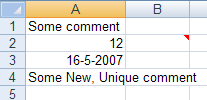
The result of our xml editing displayed in Excel
Adding numbers to a cell
Adding a number to a cell works similar to adding text, but with two differences: The numbers are kept in the Sheet?.xml itself (no reference to sharedStrings.xml) and you can add a number format.
A cell with number format "general" and no special formatting applied is represented by this xml in sheet7.xml:
<row r="5" spans="1:2">
<c r="A5">
<v>12</v>
</c>
</row>
Cell formats (styles) are referred to by an index number, like this (showing the date in cell A3 now):
<row r="3" spans="1:2">
<c r="A3" s="34">
<v>39218</v>
</c>
</row>
This happens to be a date style.
The 34 index points to another file within the package: Styles.xml.
This file starts out with a list of (custom) number formats. Then
further down, a cell formats cross reference is shown, called cellXfs,
which -if applicable- refers back to the custom number format list. The
s="34" within Sheet?.xml refers to one of the elements within this node:
Another zero based list. So number 34 is the 35th item (and last) of that list:
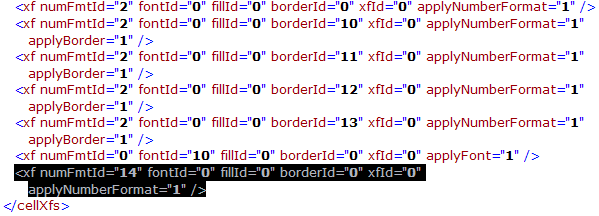
You can find more information about implicit style formats in the Standard ECMA-376 Office Open XML Formats: 2nd Edition Part 2.
This cell format cross reference in turn references the numFormatId’s list, the FontId’s list, the fillId’s list and the borderId’s list, which are all contained within Styles.xml.
As you can see, adding formatted cells to a worksheet isn’t that straightforward. You will have to check whether your specific cell formatting combination is already in the cell formatting cross reference (in Styles.xml), which involves checking all individual formatting references for their respective elements.
If your format combination is new, you’ll have to extend any formatting elements’ list with the new format and update the style crossreference. Of course all "count" arguments of these lists need to be updated as well.
Download
I have made the file used in this article available for download:

Frequently asked Questions
What is the structure of an Excel xlsx/xlsm file?
How can you find the proper worksheet XML file inside an Excel file?
How do you read a cell's value from the worksheet XML?
What is the role of the SharedStrings.xml file in Excel files?
How do you add new text to a cell in an Excel worksheet XML?
What changes are needed in SharedStrings.xml when adding new text?
How do you add a new row with text to the sheet XML?
How is adding numbers to a cell different from adding text?
What is the significance of the style index (s attribute) in a cell?
Where can you find more information about Excel's cell formatting standards?
Comments