
Creating an addin from an Excel macro
Pages in this article
- Preparations
- Book or add-in
- Menus
- Toolbars
- Limit access
- Protect code
- Initialise
- Save Settings
- UI Languages
- Setup
- Conclusion
Use Different User Interface Languages
For many utilities an ability to change the user interface language can be very convenient for the user. The consequence is that all texts shown to the user (including captions and tooltips on userform controls) have to be removed from the code and placed elsewhere.
There are different ways the translations can be stored:
In A Textfile
Advantage: if the syntax and ordering of the texts is chosen properly it is relatively easy for a user to add his own language.
Disadvantage: If the user makes a mistake, the application may read the texts in an unexpected order and the application's messages may become nonsensical.
On A Worksheet In The Add-in
Advantages: Editing is easy because all of Excel's editing facilities are available. The languages can be placed next to each other for easy reference and for quick checking.
Disadvantage: New languages cannot be added by the user, unless special measures are included, like a language import macro.
When using a worksheet, this could be a useful layout:
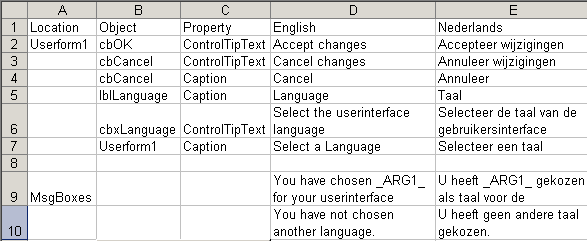
Worksheet with translations
Column A contains a description of the location for which the translations are used. Column B denotes the object, column C the property and finally from column D and on, the translations themselves.
The VBA Code that is used to read the translations uses a set of defined
names, which each point at the upper left-hand corner of the translations
belonging to a location.
The name "Languages" (cell D1) points at the start of the languages. To
get a list of available languages, the code starts reading from cell D1,
moving one column to the right until an empty column is found.
The name "Userform1" (cell D2) points at the start of the translations needed for the userform controls of Userform1.
First the code offsets to the column belonging to the currently selected language. Then all cells are read downwards, untill an empty cell is found (denoting the end of the translations belonging to this object).
Similarly the name "MsgBoxes" is used to read the translations for all message boxes.
The Translations reading code is shown in lising 7:
Listing 7
Public gsMsgs() As String
Public gsUserform1Strings() As String
Public giLang As Integer
Public gsLanguages() As String
Sub ReadMessages()
Dim iCount As Long
ReDim gsMsgs(10)
With ThisWorkbook.Names("Languages").RefersToRange
For iCount = 1 To 255
If .Offset(0, iCount - 1).Value = "" Then Exit For
ReDim Preserve gsLanguages(iCount)
gsLanguages(iCount) = .Offset(0, iCount - 1).Value
Next
End With
ReDim gsMsgs(10)
With ThisWorkbook.Names("MsgBoxes").RefersToRange
For iCount = 1 To 500
If .Offset(iCount - 1, giLang - 1).Value = "" Then Exit For
ReDim Preserve gsMsgs(iCount)
gsMsgs(iCount) = .Offset(iCount - 1, giLang - 1).Value
Next
End With
ReDim gsUserform1Strings(10)
With ThisWorkbook.Names("Userform1").RefersToRange
For iCount = 1 To 500
If .Offset(iCount - 1, giLang - 1).Value = "" Then Exit For
ReDim Preserve gsUserform1Strings(iCount)
gsUserform1Strings(iCount) = .Offset(iCount - 1, giLang - 1).Value
Next
End With
End Sub
Every time the user selects a new language, the sub ReadMessages has to be run again to ensure the proper language is used in the code.
Of course the userform also needs code to update its controls (sub placed in the code module behind the form):
With Me
.cbOK.ControlTipText = gsUserform1Strings(1)
.cbCancel.ControlTipText = gsUserform1Strings(2)
.cbCancel.Caption = gsUserform1Strings(3)
.lblLanguage.Caption = gsUserform1Strings(4)
.cbxLanguage.ControlTipText = gsUserform1Strings(5)
.Caption = gsUserform1Strings(6)
End With
End Sub
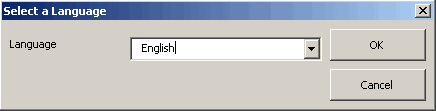
Userform1
When the text needs to be interspersed with variable information a possible problem arises. The position of the variable text may not be the same in different languages.
The solution chosen here is to use keywords which are going to be replaced with the relevant variable contents in a special function in the code:
"You have chosen _ARG1_ for your userinterface language."
Unfortunately this function will not work in Excel 97, due to the use of the "Replace" function.
Listing 8
Optional ByVal Arg1 As String, _
Optional ByVal Arg2 As String, _
Optional ByVal Arg3 As String, _
Optional ByVal Arg4 As String, _
Optional ByVal Arg5 As String) As String
If Not IsMissing(Arg1) Then
sMsg = Replace(sMsg, "_ARG1_", Arg1)
End If
If Not IsMissing(Arg2) Then
sMsg = Replace(sMsg, "_ARG2_", Arg2)
End If
If Not IsMissing(Arg3) Then
sMsg = Replace(sMsg, "_ARG3_", Arg3)
End If
If Not IsMissing(Arg4) Then
sMsg = Replace(sMsg, "_ARG4_", Arg4)
End If
If Not IsMissing(Arg5) Then
sMsg = Replace(sMsg, "_ARG5_", Arg5)
End If
sMsg = Replace(sMsg, "_NEWLINE_", vbNewLine)
ReworkMsg = sMsg
End Function
This function has 5 optional arguments. So in order to retrieve the sentence shown earlier, the function can be called as follows:
MsgBox ReworkMsg("You have chosen _ARG1_ for your userinterface language.", "English")
End Sub
The result of running this example is shown below:
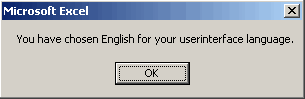
Message box showing the proper anouncement.
So the example above replaces "_ARG1_" with "English".
By inserting the codeword "_NEWLINE_", a carriage return can be inserted in the text, e.g.:
Sub Example()
MsgBox ReworkMsg("You have chosen _ARG1__NEWLINE_for your userinterface
language.", "English")
End Sub
The result of running this example is shown here:
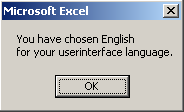
Message box showing the adjusted anouncement.


Frequently asked Questions
How can you use different user interface languages in an Excel add-in?
What are the advantages and disadvantages of storing translations in a text file?
How can translations be stored on a worksheet in the add-in?
What is the layout suggested for storing translations on a worksheet?
How does the VBA code read the translations from the worksheet?
What is the purpose of the ReadMessages subroutine in the VBA code?
How does the userform update its controls with the selected language texts?
What problem arises when interspersing variable information in translated texts?
How does the ReworkMsg function handle variable text replacements in different languages?
How can you insert a carriage return in the translated message text using the ReworkMsg function?