
Creating an addin from an Excel macro
Pages in this article
- Preparations
- Book or add-in
- Menus
- Toolbars
- Limit access
- Protect code
- Initialise
- Save Settings
- UI Languages
- Setup
- Conclusion
Preparing A Macro For Distribution
When one creates an Excel macro for personal use (which one wishes to be available to all open workbooks), the best place to store that macro is in a special workbook named personal.xls (or Personal.xlsb in Excel 2007 and up). This workbook is generated automatically as soon as one records a macro and indicates that Excel should store it in the "Personal Macro Workbook", as shown in this figure:
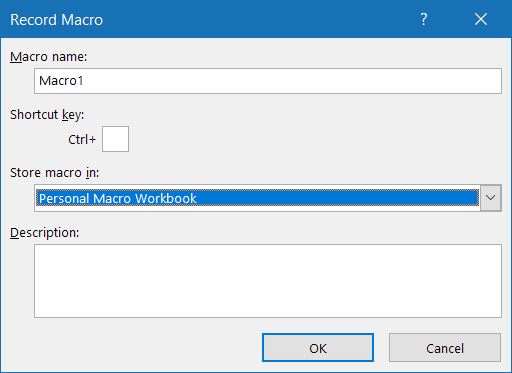
Record macro dialog.
This "Personal Macro Workbook" is a hidden workbook called personal.xlsb, saved in the XLSTART folder of Excel, from which Excel loads all files when it starts.
In Windows 10 you may find this folder here:
C:\Users\[Username]\AppData\Roaming\Microsoft\Excel\XLSTART
To quickly find that folder, open Windows Explorer and click in the address bar. Type: %appdata%\Microsoft\Excel\XLSTART and press Enter.
When one wants to distribute a macro to others, it is not a good idea to send them your personal.xlsb workbook. If your recipient has his own personal.xlsb and tries to open yours, Excel will generate an error message stating it cannot open two files with the same name. Alternatively, if the recipient copies your file to his own XLSTART folder, his own personal.xlsb gets overwritten, wiping out his own macros permanently.
The way to do this is to copy your macro to a fresh workbook. If the macro is contained in one ore more modules, this is a simple process:
- Open a blank workbook (File, New).
- Open the Visual Basic Editor (alt-F11).
- Copy the module(s), Class Module(s) and Userform(s) that contain your code by dragging their entry in the project explorer to the project of the new empty workbook (see below).
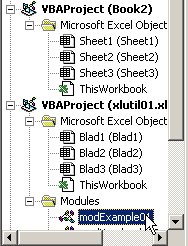
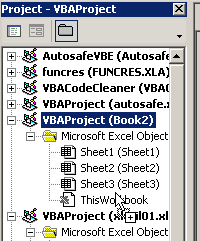
Copying a module in the VBE
As soon as all relating modules, forms and class modules have been copied the new workbook should be saved.
Once you're ready to save your work, make sure you select the proper file type in the save-as window. You need to use the xlsm filetype, otherwise if you use the default xlsx type, you're macros will NOT be saved with the workbook!

Frequently asked Questions
What is the best place to store an Excel macro for personal use?
How can you find the XLSTART folder in Windows 10?
Why is it not a good idea to send your personal.xlsb workbook to others?
What happens if a recipient tries to open two personal.xlsb files with the same name?
How can you copy a macro from your personal workbook to a fresh workbook?
What steps are involved in copying modules and forms in the Visual Basic Editor?
What file type should you use to save a workbook containing macros?
Where is the personal.xlsb workbook saved on your computer?
What is the purpose of the "Personal Macro Workbook" in Excel?