
Handling Worksheet control events using a class module.
Pages in this article
Creating the Class module
First, insert a class module.
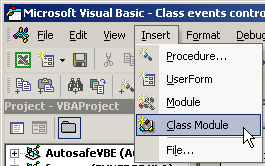
Figure 2: Menu to insert a class module
In the properties window, change its name from the default Class1 to clsObtHandler:
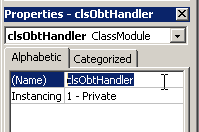
Figure 3: The properties window showing the name of the classmodule
Now in the codepane, type these lines:
Private WithEvents mobtOption As MSForms.OptionButton
After doing this, you will be able to select mobtOption from the lefthand dropdown list at the top of the codepane:

Figure 4: Dropdown showing new Item for Class module
If you select this, the default Click event skeleton code is inserted in your module:
End Sub
If now you click on the right dropdown list, you will get all events available for this type of control through the class module:
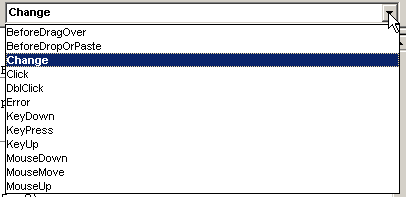
Figure 5: Events tied to the option button control when invoked through
a class module
Note, that the number of available events is less than when using the codemodule behind the worksheet:
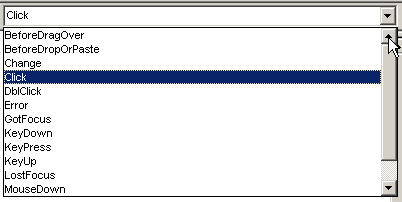
Figure 6: events for control as available through the worksheet
codemodule
Specifically, for this control the LostFocus event isn't available in a class module. other controls may have more events missing.
Select the Change event from the dropdown and remove the click event. You should now have something like this:
Private WithEvents mobtOption As MSForms.OptionButton
Private Sub mobtOption_Change()
End Sub
I said I wanted to change the color of the selected control and of course also change the de-selected one back. I also wanted a message about which option button has been selected. I devised this code for that:
If mobtOption.Value = 0 Then
mobtOption.Object.BackColor = RGB(0, 255, 0)
Else
MsgBox "You have selected " & mobtOption.Caption & " from " & mobtOption.GroupName
mobtOption.Object.BackColor = RGB(255, 0, 0)
End If
End Sub
When one clicks one option button to select it, both the selected option button and the de-selected option button will fire their change events, so this Event sub will be run twice, once for the selected control and once for the de-selected control. The first will have a Value of 1 and the second a Value of 0.


Frequently asked Questions
What is the first step to create a class module for handling worksheet control events?
How do you rename a class module in the VBA Editor properties window?
What code lines are initially typed in the class module code pane?
How can you select the control object from the dropdown list in the VBA Editor?
What happens when you select the control object in the left dropdown list of the code pane?
Which event is not available for the option button control in a class module?
How do you change the event from Click to Change in the class module?
What is the purpose of the example code in the mobtOption_Change event?
Why does the Change event sub run twice when selecting an option button?