
Installing An Excel Add-in Using Setup Factory
Content
- Introduction
- Thank you note
- How Add-ins are Managed in Excel
- How To Install An Excel Add-in using Setup Factory
- How to uninstall an add-in
Introduction
Being an MVP has some benefits. One of them is that some software companies offer Not For Resale (NFR) products to them for free. Of course these companies hope the MVP's will advocate their products.
Well, for this one I will do so: Setup Factory - Software Installation Builder for Windows
I must say I'm most impressed with it.
Some Excel background first!
Thank you note
Special thanks to Emiel Nijhuis, for fine-tuning the script!
How Add-ins are Managed in Excel
In Excel, all the user sees is the list of available Add-ins when he selects Tools, Add-ins. Here is what my Add-ins dialog looks like:
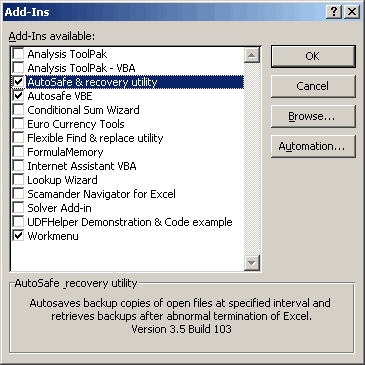
Add-ins list of Excel
You can navigate to this dialog as follows:
- Excel 2007: Start-button , Excel Options, Add-Ins, drop down: Excel add-ins, Go
- Excel 2010: File tab, Options, Add-Ins, drop down: Excel add-ins, Go
What Add-ins are available
Under the hood, Excel keeps score in the registry which Add-ins there are and which are installed.
To build the list in the above dialog, Excel looks in a couple of places:
1. The Add-ins folder:
C:\Documents and Settings\UserName\Application Data\Microsoft\AddIns
or altenatively:
C:\Program Files\Microsoft Office\OFFICE11\Library
C:\Program Files\Microsoft Office\OFFICE12\Library
and etcetera.
Any Add-ins in this folder are automatically included in the Add-ins dialog.
2. The registry
For Add-ins in a different location from the ones shown above, Excel will look in the registry. Keys are added there when you click the browse button to locate an Add-in.
HKEY_CURRENT_USER\Software\Microsoft\Office\11.0\Excel\Add-in Manager
So for Excel 2007 this is:
HKEY_CURRENT_USER\Software\Microsoft\Office\12.0\Excel\Add-in Manager
In this location, there is a value for each Add-in to be shown in the Add-ins dialog. The value needed is simply the path to the Add-in, e.g.:
C:\Program Files\Autosafe\autosafe.xla
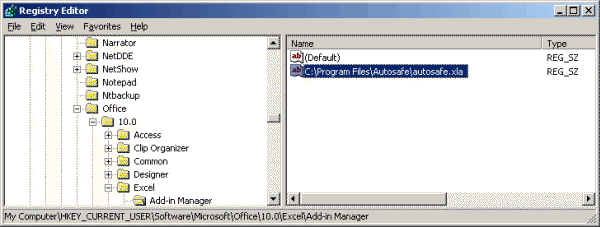
Part of the registry that handles Add-ins that are not in the default
location
Which Add-ins are Selected
In another location in the registry, Excel notes what Add-ins are selected. It does so using a number of values in this part of the registry:
HKEY_CURRENT_USER\Software\Microsoft\Office\10.0\Excel\Options
For each selected Add-in, Excel adds an entry in this location, successively called "OPEN", "OPEN1", "OPEN2",...
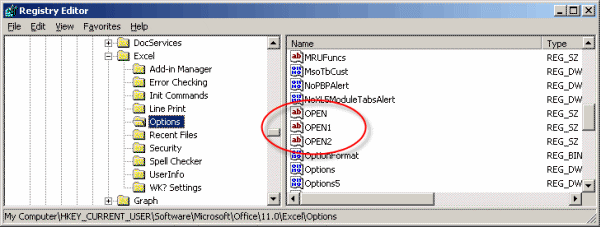
Registry showing entries for Add-ins that are selected
These keys each contain the name of the add-in to be opened (and sometimes some command-line parameters). If an add-in is not in the add-ins folder the full path is included.
Note that the Keys are updated AFTER closing Excel.
How To Install An Excel Add-in using Setup Factory
Setup factory does not come with an automatic/wizard driven way to handle the registry entries that need to be produced for Excel, so an Add-in is properly added to the Add-ins dialog and is installed. But it does come with a versatile scripting language that enables you to program these entries yourself quite easily.
I've spent maybe 4 hours to figure this out and I had never used the scripting bit of Setup Factory before. Note that only the registry part needs scripting, the remaining stuff (creating the setup screens, configuring how the setup works, where to install your files, what files to install...) is done through easy to use wizards and configuration screens.
Script for registry modifications during Install of an Add-in
On Startup script
It is a good idea to check whether Excel has been closed before installing your addin, otherwise the addin will not be installed (because Excel will update the registry upon closing, it will remove the keys just added by the script). So add this On startup script:
--Check whether Excel is opened.
sValues = Window.EnumerateTitles(true);
--Next line has SetupFactory 8 code
--for iCount, sValue in sValues do
for iCount, sValue in pairs(sValues) do
if String.Find(sValue, "Microsoft Excel", 1, true)>0 then
Dialog.Message("Error", "First close
Microsoft Excel."..String.Char(10)..String.Char(10).."Installer will
now abort.",MB_OK, MB_ICONINFORMATION);
Application.Exit(0);
end;
end;
On post install script
The script shown below does the following:
- Find out which Excel versions are present in the system by reading
what numeric keys are present in this registry location:
HKEY_CURRENT_USER\Software\Microsoft\Office
(Each version has a numeric entry here: 12.0 for 2007, 14 for 2010, 15 for 2013, 16 for Excel 2016, 2019, 2021 and 365.) - For each of these versions the script then looks in the Excel/Options part of the registry whether the addin-to-be-installed is already listed there. If so, the key is noted and removed, but will be recreated later on in he script.
- After that, the same is done for the entries in the Addin-manager location of the registry: look if the addin-to-be-installed is present and if so, remove the Value from the registry.
- Now that old versions are removed from the registry, the script can add the values and keys for the newly installed add-in.
The script assumes you have created a -what Setup Factory calls- "Custom Session variable", named "AddinFileName", which contains the filename of your add-in.
sVersions = Registry.GetKeyNames(2, "Software\\Microsoft\\Office");
-- Iterate through the registry keys per MS Office-version
--Next line has SetupFactory 8 code
--for iCount1, sVersion in sVersions do
for iCount1, sVersion in pairs(sVersions) do
-- Try opening the registry key
sSubKey = "Software\\Microsoft\\Office\\"..sVersion..
"\\Excel\\Options\\"
sValues = Registry.GetValueNames(2, sSubKey);
--initialize index counter
iIndex = -2
if sValues then
--Determine the index of the maximimum OPEN registry entry
--Next line has SetupFactory 8 code
--for iCount2, sValue in sValues do
for iCount2, sValue in pairs(sValues) do
if (String.Left(sValue, 4) == "OPEN") then
--Check whether the user did not already install
--the same add-in to prevent errors when opening Excel
sKeysValue = Registry.GetValue(2, sSubKey, sValue, true)
if String.Find(sKeysValue, SessionVar.Expand(
"%AddinFileName%"), 1, false) > 0 then
iIndex = -1
-- leave loop
break;
else
if (sValue == "OPEN") then
iIndex = 0
else
iIndex = String.ToNumber(String.Mid(
sValue, 5, String.Length(sValue)-4))
end;
end;
end;
end;
-- -1 means: This add-in is already installed; we're done
if iIndex ~= -1 then
--Determine path based on variable "%AddinFileName%
sAppPath = String.Char(34)..
SessionVar.Expand("%AppFolder%")..
"\\"..
SessionVar.Expand("%AddinFileName%")..
String.Char(34)
-- -2 is the initialized value of the index counter
if (iIndex == -2) then
-- OPEN-key does not exist
Registry.SetValue(2, sSubKey, "OPEN",
sAppPath, REG_SZ)
else
Registry.SetValue(2, sSubKey, "OPEN"..(iIndex + 1),
sAppPath, REG_SZ)
end;
end;
end;
end;
To make sure no registry entries are changed until all files have been installed successfully, make sure you add this script to the "On Post Install" action in Setup factory.
How to uninstall an add-in
Of course Setup Factory also generates an uninstall method, both in the start menu and in the Add/remove programs applet of Windows Control Panel.
Again, some registry changes are necessary because the proper Add-in Manager entry and the Options/OPEN entry have to be removed from the registry in order to prevent startup errors during load of Excel.
On Startup
Again, the following script is optional if you want the user to close Excel before uninstalling your add-in:
--Check whether Excel is opened.
sValues = Window.EnumerateTitles(true);
--Next line has SetupFactory 8 code
--for iCount, sValue in sValues do
for iCount, sValue in pairs(sValues) do
if String.Find(sValue, "Microsoft Excel", 1, true)>0 then
Dialog.Message("Error", "First close
Microsoft Excel."..
String.Char(10)..String.Char(10)..
"Uninstaller will now abort.",
MB_OK, MB_ICONINFORMATION);
-- Make sure the process ends with a
value other than 0
-- so the uninstall can be performed
again.
Application.Exit(EXIT_REASON_USER_ABORTED);
end;
end;
On Post Uninstall
It does the following:
- Find out which Excel versions are present in the system by reading
what numeric keys are present in this registry location:
HKEY_CURRENT_USER\Software\Microsoft\Office
(Each version has a numeric entry here: 9.0 for Excel 2000, 10.0 for XP and so on.) - For each of these versions the script then looks in the Excel/Options part of the registry whether the addin-to-be-uninstalled is listed. If found, the key is removed.
- After that, the same is done for the entries in the Addin-manager
location of the registry: look if the addin-to-be-uninstalled is
present and if so, remove the Value from the registry.
sVersions = Registry.GetKeyNames(2, "Software\\Microsoft\\Office");
-- Iterate through the registry keys per MS Office-version
--Next line has SetupFactory 8 code
--for iCount1, sVersion in sVersions do
for iCount1, sVersion in pairs(sVersions) do
-- Try opening the registry key
sValues = Registry.GetValueNames(2,
"Software\\Microsoft\\Office\\"..sVersion.."\\Excel\\Options");
if sValues then
--Next line has SetupFactory 8 code
-- for iCount2, sValue in sValues do
for iCount2, sValue in pairs(sValues) do
-- Any installed add-ins present in this Office version?
if (String.Left(sValue, 4) == "OPEN") then
sSubKey = "Software\\Microsoft\\Office\\"..sVersion..
"\\Excel\\Options\\"
sKeysValue = Registry.GetValue(2, sSubKey, sValue, true)
-- Delete the registry key if we encounter our add-in
if String.Find(sKeysValue, SessionVar.Expand(
"%AddinFileName%"), 1, false)>0 then
--Dialog.Message(sSubKey, sValue) –-*for debugging*
Registry.DeleteValue(2, sSubKey, sValue)
end;
end;
end;
end;
end;
Frequently asked Questions
How are Add-ins managed in Excel?
Where does Excel look to build the list of available Add-ins?
What registry keys are involved in managing Excel Add-ins?
How can you install an Excel Add-in using Setup Factory?
What scripting is necessary to modify the registry during Add-in installation?
How do you uninstall an Excel Add-in using Setup Factory?
What registry changes are needed when uninstalling an Add-in?
Why is it important to close Excel before installing or uninstalling an Add-in?
How does the script detect which Excel versions are installed on the system?
Comments