
Using controls on worksheets
Content
- Introduction
- Where to find the controls
- Two groups of controls; the differences
- Inserting controls
- Overview of the available controls
- Detailed description of the controls
- Interaction between controls and worksheet cells
- Conclusion
Introduction
As a frequent spreadsheet user, you will be familiar with the concept of using data entry cells to feed your model with input.
To ease data input, you can use the Data, Validation option (which is NOT discussed in this article).
Sometimes it is more convenient to be able to change the input of your model by using controls you can interact with using e.g. your mouse. Excel offers a range of controls to do this, such as dropdown lists, spinner buttons, option buttons and the like. These user interface elements are called controls -after all, they allow you to "control" Excel-.
This article shows you how you use the form and control toolbox (ActiveX) controls.
Where to find the controls
Showing the Developer tab on your ribbon
Making sure the Developer tab shows up is quite easy
- For Excel 2010 and up: Click File, Options and click the Customize Ribbon tab
- Check the box indicated below and click OK:
-
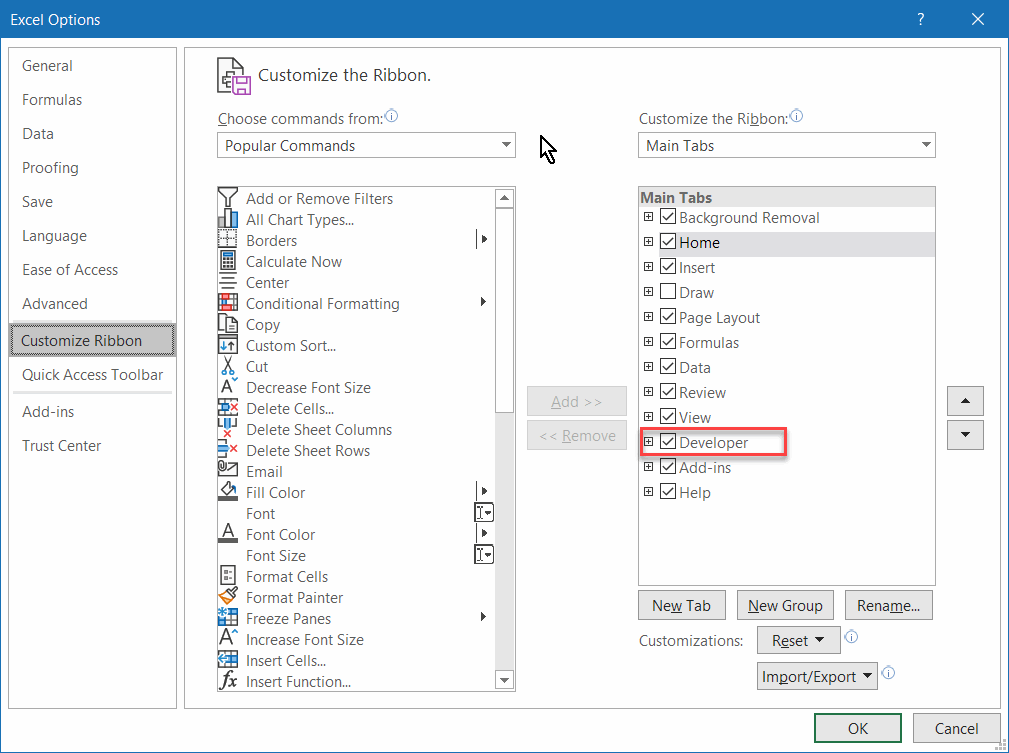
Fig 1: Showing the Developer tab on the ribbon (Excel 2010 and up).
- After you've checked the box and clicked OK, you will find a new
tab called "Developer" on your ribbon. This tab houses a group called
"Controls", which in turn contains a button "Insert". The dropdown list
shows all available controls:
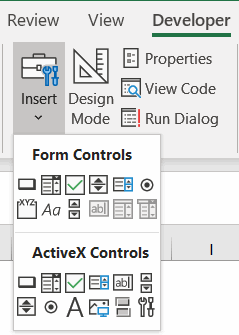
Fig. 2: The controls on the Developer tab.
Note that there are two groups of controls:
- Form Controls
These are the most reliable controls, but they do not offer much flexibility regarding formatting. - ActiveX Controls
These are more versatile, but also less reliable. They have the annoying tendency to move around and change size without your consent.
Two groups of controls; the differences
By now it is apparent that there are two distinct series of controls: Those from the forms group and those from the Control toolbox (named ActiveX controls in Excel 2007 and up).
Pro's and con's
The table below lists some advantages and disadvantages of both control sets:
- Simple to use
- Can be used on chart sheets
- Assigning control to a macro is simple
- Little known problems
- Lots of options
- Lots of events (VBA)
- Lots of formatting options
- Lists return the selected value rather than the index number
- Lists return the index number rather than the selected value
- Cumbersome to use one macro for multiple controls
- Sometimes cause of trouble with file corruptions
Which should you use
By now you'll be wondering which set you should use. Generally speaking, I recommend using the controls from the forms toolbar. If you have specific needs regarding formatting which cannot be achieved using the forms controls (or if you want to program events in VBA), then you'll have to switch to the ActiveX controls (control toolbox controls).
Inserting controls
Inserting a control on your sheet is very simple: Just click the control you need and drag a rectangle on the sheet at the position where you want the control to appear. You can also just click on the sheet and have Excel decide what dimensions to use for the control.
If you hold down the alt key when you click on the worksheet, then the control will be aligned to the cell grid. You can also hold the alt key when you are dragging the control or resizing the control to have it snap to the grid. This is a quick way to ensure your controls are nicely aligned and of equal size.
Double click a control on the toolbar or on the Insert controls dropdown if you want to draw multiple copies of that control. Click that control again (or any other control) to get out of that mode.


Overview of the available controls
The table below shows which controls there are and describes each one shortly.
Detailed description of the controls
Label
The label control is the simplest control available, all it can be used for is to display descriptive text. Use this control if you want to add some explanatory text to another control.
TIP: You can make sure the label text is derived from a worksheet cell. To do so, select the label and then click in the formula bar and enter a reference to the cell. See fig. 5.
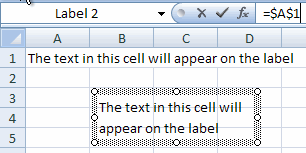
Fig 5: The text on a label drawn from a worksheet cell
Frame
You can use a frame to visually group controls with a shared purpose. Apart from that, the frame control has a specific function for option button controls (see the appropriate section about them). You must start with drawing the frame control before adding the controls you want placed "inside" the frame. To make this a painless process, start out by drawing a relatively large frame (you can make the frame smaller later on). After that, draw the controls inside the frame:
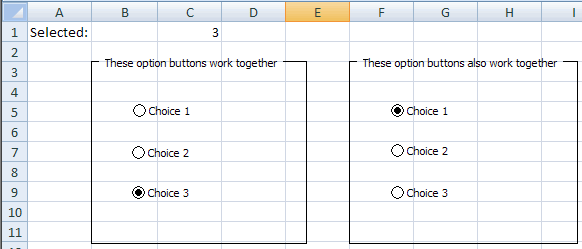
Fig 6: Frames with OptionButtons within.
Button (CommandButton)
Buttons or CommandButtons are used to start VBA code (macro's). If you draw a Button from the Forms toolbar on a sheet, Excel will prompt you for a macro to run when the button is clicked (fig 7). If you have not written a macro yet, then you can type the macro's name and click the "New" button to have the (empty) subroutine created for you:
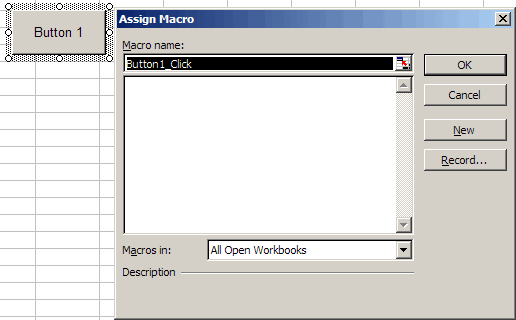
Fig 7: Excel asks you what macro to run when the button is clicked.
If you used the CommandButton from the Control toolbox, you need to double-click the button (in design mode) to access its VBA click event. Code for control toolbox (ActiveX) controls is typically written in the code module behind the sheet they are placed on.
TIP: If you want to change the properties of a control from the control toolbox (an ActiveX control), then you must put your sheet into "Design mode". You can find this button on the "Developer" tab, within the "Controls" group. When you want to start using the controls, click the same button to get out of design mode.
CheckBox
Typically, a checkbox control is used to enable the user to turn something on or off, or to answer a yes/no question. The checkbox always stands on its own, allowing multiple options to be selected (checked) at the same time.
OptionButton
The option button is very similar to the check box, but only allows mutually exclusive choices to be made; in a set of option buttons, only one option can be "checked". If you take no specific action then all option buttons on one sheet will be treated as one single group. It is possible to have multiple groups on a sheet. The method to achieve this differs between the two sets of option buttons.
The method to tie an option button to a cell differs between the two types too.
Forms option button
To group option buttons from the forms toolbar, first draw frames on your sheet. Then draw the option buttons INSIDE the frame:
Fig 8 : Two frames with option buttons.
Option buttons from the forms toolbar share their linked cell. The value returned to the cell is the index number of the selected option. Note that the index will match the order in which you created the option buttons.
To select a control from the forms toolbar (for example to be able to move the control), either right-click the control or control+click it. To select multiple controls to change their properties in one go, hold control while clicking them.
Group controls you want to keep together, for example those within a frame, by control+clicking them in turn and then right-clicking on one of their edges and selecting "Grouping", "Group".
Control toolbox option button (ActiveX)
The option button from the Control toolbox toolbar (ActiveX) has a special property to set up which work together, called the Groupname property:
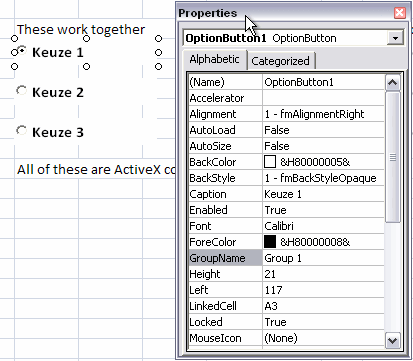
Fig 9: Groupname property of the ActiveX OptionButton control.
If you do not change this property, all option buttons on a sheet work together as a single group.
ActiveX option buttons all have their own linked cell, which will receive the checked state of their parents as a True/False value.
TIP: You can get at the properties window of the controls by right-clicking a control and selecting "Properties". You can also click the appropriate button on the Control Toolbox toolbar. In Excel 2007 and up, you'll find that button on the Developer tab, within the Controls group.
ListBox
If you want to enable your user to select an option from a list you can use a list box. Of course you could also use a set of option buttons for this goal, but making a set of option buttons dynamic (for example if you want to be able to expand the number of choices) is cumbersome. If you have a limited set of available choices (rule of thumb: no more than 5), use option buttons. If there are more, use a list box or a combo box control.
You can either have the control pick up the list from a range of cells, or add the choices to the list box control using VBA. This is done by entering the corresponding information into the ListFillRange or Input range property. If your list of choices resides on a different worksheet from the one your list box is placed on, you must define a range name for the list. Do so by selecting the list and hitting control+F3. In Excel 2007 and up you then need to click the "Add" button. Enter a name for the list and click OK until you're back in Excel. After that, you can enter this new range name in the appropriate property of the control.
The second most important property is the LinkedCell (cell link), this cell will receive the result of selecting an item in the list box:
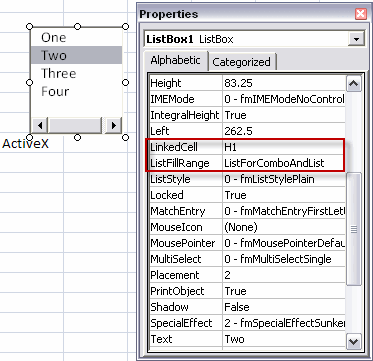
Fig 10, Two important propeties of the ActiveX list box control.
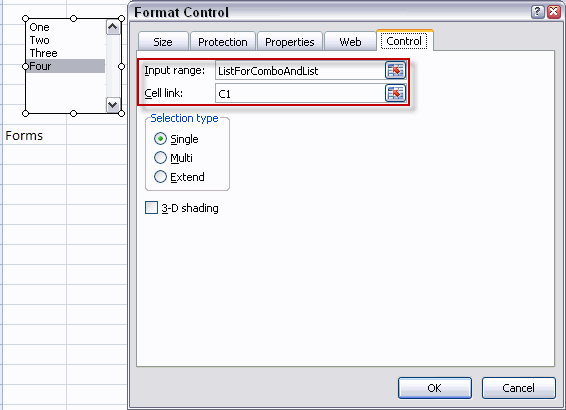
Fig 11: Two important properties of the forms list box.
Note that the list box from the forms toolbar will show the index of the chosen item in the cell, whereas the control from the control toolbox returns the actual value to the cell. For the list box from the forms toolbar, use a formula like this one to get the actual value:
=INDEX(ListForComboAndList,C1)
You can set the list box to "Multi" or "Extended" to enable multiple selections. In that case, the linked cell will show either a zero for the list box from the forms toolbar or #N/A for the control toolbox list box control. You will have to use VBA to read what items have been selected and act accordingly.
ComboBox
A combobox is very useful when there are many values to choose from and when you only want to show the chosen item. With the combobox from the Control toolbox you can dynamically add items to the list -using VBA- when the user types a new item in the box instead of selecting an existing item. The combo box form the forms toolbar does not have this possibility: the user is limited to the choices available in the list.
The two important properties LinkedCell and ListFillRange operate in the exact same way as for the list box control.
ScrollBar
The most important reason to use a scrollbar is to be able to change a value very quickly. The user can drag the scroll button, click next to the scroll button to change "page" or click the arrows to increase or decrease the value stepwise.
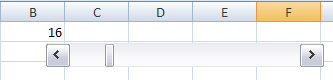
Fig 12: Scrollbar with linked cell.
A vertically placed scroll bar works opposite compared to a spinner control. Clicking the up arrow on a spinner increases the value; clicking the up arrow on a scroll bar decreases the value. In my opinion, the former is more intuitive. If I need this vertical setup, I prefer to use a spinner over a scroll bar.
A scroll bar enables you to change the value in two ways. The "Incremental change" is performed by clicking the arrow buttons, the "Page change" is performed by clicking next to the scroll button. See fig. 13:
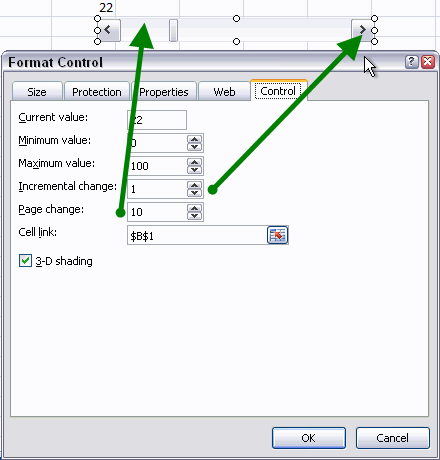
Fig 13, Two levels of step sizes.
These properties have a different name for the scroll bar of the Control Toolbox toolbar (ActiveX) "SmallChange" and "LargeChange" respectively, see figure 14:
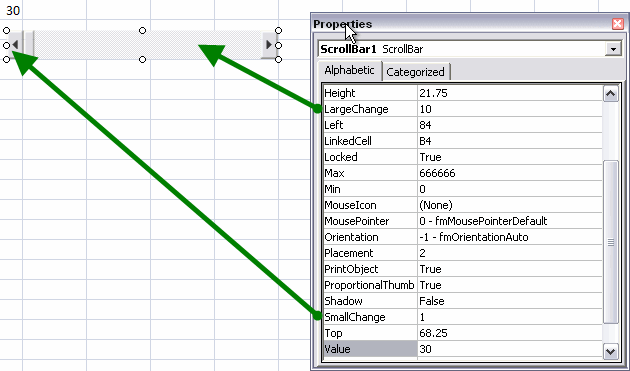
Fig 14, Setting properties of the ActiveX controls scroll bar.
Scroll bars can only work with integers. The range you can use differs between the two families. The forms control ranges from 0 to 30,000. The ActiveX control can go as high as 666,666.
If you need steps less than 1, then use a calculation. For example if you need a step size of 0.5, divide the linked cell's value by 2.
Spinner
If you want to be able to quickly change a cell value stepwise, the spinner is the place to be.
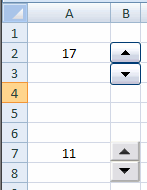
Fig 15: Spinner controls.
Setting up spinner controls works identical to the scroll bar control, using the same properties. Of course the spinner does not have a Page change (LargeChange) property.
TextBox
There is only one text box control, member of the ActiveX family of controls. I find this control to have little use, because you can simply use a cell and enter text into the cell directly.
ToggleButton
The last control I discuss here is the toggle button. This is another example of a control that is only available through the ActiveX family of controls. In my opinion, this control is ambiguous. It could be used to either indicate an action, or a state. You could use a control like this to change the page setup of a sheet from portrait to landscape and vice versa. Disadvantage of this control is that the state and action paradigm are conflicting, especially if the two states have a different name (like in the example).
Suppose you want to enable toggling between portrait en landscape. You might be tempted to use a toggle button, which has some VBA attached to it to set the option and which updates the caption of the control. What does the caption indicate, the current status, or the status AFTER clicking the toggle button?
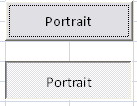
Fig 16: Ambiguity when using a toggle button: which one indicates we're in Portrait mode?
Due to this ambiguity a toggle button is only useful to indicate an on or off state for a property which has the same name in both states. For this goal, a checkbox is to be preferred. If there are two mutually exclusive choices, consider using two option buttons.
Interaction between controls and worksheet cells
Each control can be tied to a cell and thus (by using that cell in your formulas) affect your spreadsheet model directly and drive interactivity between your model and the user. For the forms controls, you access these options by right-clicking the control in question and selecting "Format control". Each control offers its own set of options, which are located on the "Control" tab. (see figures 11 en 13). Similarly, you can change the properties of the Control toolbox (ActiveX) controls using their properties window.
Conclusion
Excel is a very flexible instrument to perform analyses and what-if scenario’s. You use formulas in cells with one or more input cells to calculate the various situations. To ease working with different values and/or choices, you can put the controls from either the Control toolbox or the Forms toolbar to good use. Proper use of these controls make your models easier to use.
The controls also enable you to ease data entry and at the same time improve data quality by minimizing the risk of wrong entries. For "day-to-day" use, I recommend the Forms controls. If there are specific options you need which are not offered by the form controls then you can also implement the Control toolbox (ActiveX) controls.
Frequently asked Questions
What are controls in Excel and how do they help with data input?
How can I enable and find the Developer tab to access controls in Excel?
What are the differences between Form Controls and ActiveX Controls?
How do I insert controls onto an Excel worksheet?
What types of controls are available in Excel and what are their uses?
How do I use and configure OptionButtons in Excel?
What is the purpose of a ListBox and how do I link it to worksheet data?
How do ScrollBars and Spinners differ in Excel controls?
How do controls interact with worksheet cells to affect models?
Which type of controls are recommended for everyday use in Excel?
Comments