
XML and Excel
Pages in this article
- What is XML
- Characteristics of XML
- Structure of XML
- XML Schemas
- XML in Excel
- XML Validation
- Conclusion
XML Validation
Odd enough, validation of XML files against their attached schema definition is turned off by default. Turning on this option will force Excel to check each XML file against the schema during import and export.
First an XML file containing a reference to s schema must be mapped to Excel cells. Close all open files in Excel you don't need and select File, Open. Select file test2-en.xml. I've left out the name of the first employee from this file. Again, select the option "Use the XML source task pane". Drag the branch "employee" to any cell. Next, click the properties button on the table tools tab of the ribbon (External table Data group), See fig. 12.
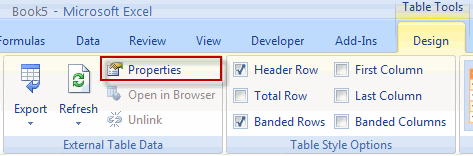
Figure 12: XML properties button on ribbon
For Excel 2003, you can get at the properties dialog by clicking the appropriate button on the "List" toolbar:
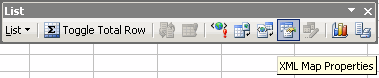
Figure 13: The Properties button on the List toolbar in Excel 2003
The XML properties dialog opens:
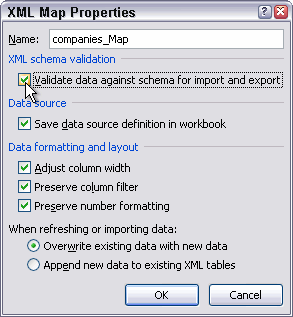
Figure 14: XML Map properties dialog
Check the box next to "Validate data against schema for import and export".
Now click the refresh button to import the data from test2_en.xml. The following dialog appears:
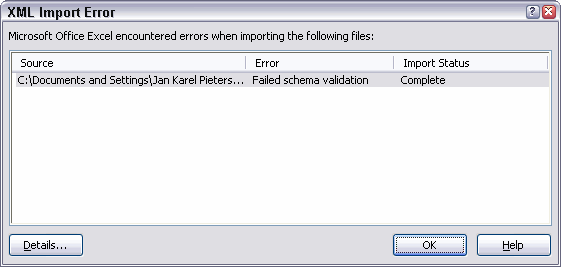
Figure 15: Error message caused by importing an XML file that violates
its schema
By clicking the Details... button Excel shows you a bit more information about what is wrong with your XML file (Figure 16). In this case Excel indicates that it did not expect the element "street" to appear yet, but the element "name" (apologies for the partially Dutch screenshot, a bug in Excel's multi-language pack). This error message is caused by the fact that I omitted the name tag and hence this tag is not in the expected position in the XML file. Despite the error message Excel did import the data.
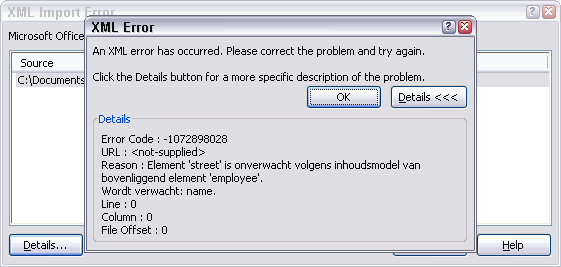
Figure 15: Details of the validation errors caused by the offending XML
file
Validation also works when exporting data. Open the file ExcelXML_en.xlsx and remove the name column entirely. Now try to export the XML list (see figure 16)
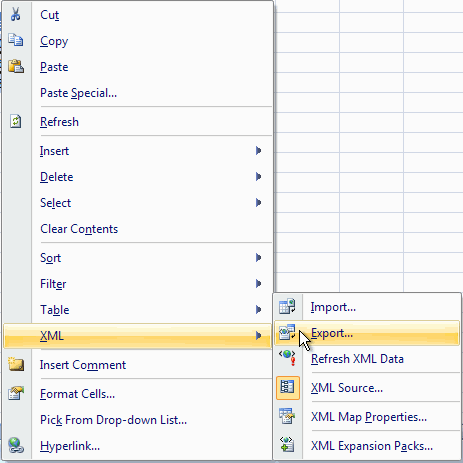
Figure 16: Rightclick cell menu, XML option, export
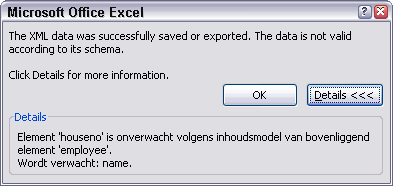
Figure 17: Error message after exporting XML data that violates the
schema.


Frequently asked Questions
What is the default setting for XML validation in Excel?
How can you enable XML validation during import and export in Excel?
What steps are needed to map an XML file to Excel cells?
Where can you find the XML properties button in Excel's ribbon?
How do you access the XML properties dialog in Excel 2003?
What option must be checked to validate data against the schema in Excel?
What happens when you import an XML file that violates its schema in Excel?
How does Excel provide details about XML validation errors?
Can XML validation also be applied when exporting data from Excel?
What error occurs if you export XML data that violates the schema in Excel?
Comments