
Using Parameters With Web Queries
This article has been posted on the Microsoft Excel team blog on MSDN too.
Introduction
Excel provides a very useful option to gather data from websites, called web queries. These have been introduced with Excel 97 and have been further enhanced in the versions released after Excel 97. This article shows how you can setup a web query so that you can make the worksheet dynamically update based on values in so called parameter cells.
Setting up the web query
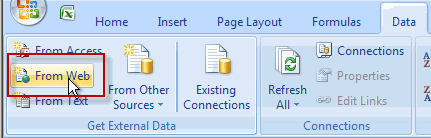
Setting up a web query is as simple as clicking the Data tab and then clicking the "From Web" button on the Get External Data tab:
You’ll get this screen:
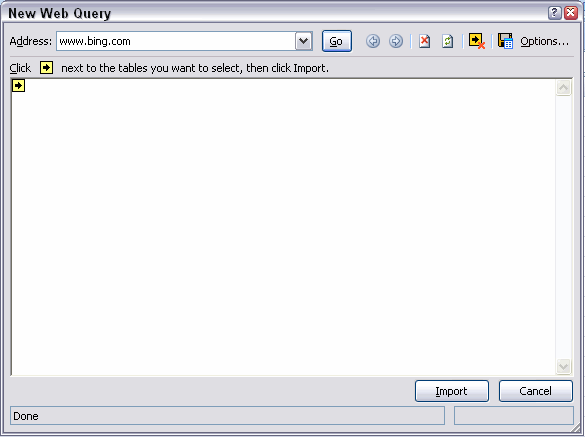
Enter www.bing.com and click the Go Button.
In the search box that follows, enter the word Question and hit enter. The screen refreshes and a new url appears in the address box:
http://www.bing.com/search?q=Question&form=QBLH&filt=all
Don’t do anything yet, first click the "Options" button and set the Web Query to return full html results (if so desired):
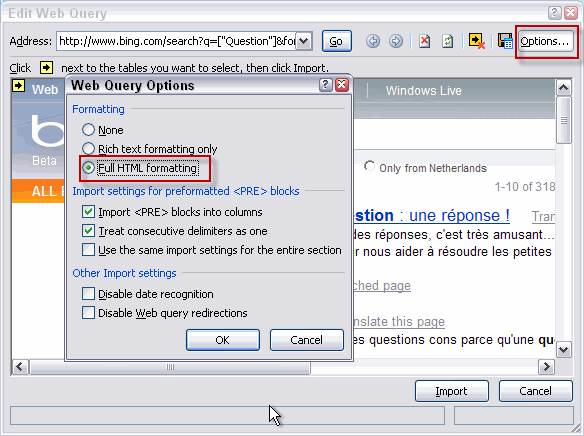
If you want these results in your sheet, just hit the import button now. However, if you want an interactive result in your sheet, enabling you to enter new search criteria in a cell, modify the url so it looks like this:
http://www.bing.com/search?q=["Question"]&form=QBLH&filt=all
You have now made part of the url work as a parameter, by replacing that part of the url with some text between quotes and square brackets (this will only work when using the URL would open a normal page in a web browser). The string you entered will be used as both the name of the parameter and the prompt. Excel will interpret the part between the square brackets as a parameter and prompt you for a value once you click the Import button or when you refresh the query table. Now we’re ready to click "Import". If the page takes time to load, you’ll see a progress screen:
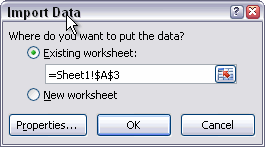
Next Excel asks where to put the results; put them in cell A3 so we have room above the table:
Excel detects we have a parameter and now asks what value you want. As you can see you can select a cell for the parameter, lets use cell A1.
The fun thing is, that you can either fill in a value or you can select a cell as an input for the parameter:
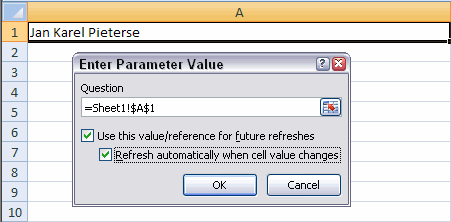
By checking the two checkboxes shown above, you ensure that Excel will automatically update the query table when you change the content of the cell(s) you selected.
Sometimes, inserting the parameter part in the url fails. In such cases, try modifying the routine called Demo2 as shown below so it has the URL you need and the parameters at the proper positions. Make sure you have the proper cell addresses in place as well. When done, run the routine. You should now be able to use the dynamic web query.
Working With Web Query Parameters In VBA
Excel VBA offers the programmer access to web query parameters through the Parameters collection of Parameter objects.
Unlike "normal" database queries, it is not possible to add a parameter to the Parameters collection using the Add method (though even for that type of query, doing so is an awkward process).
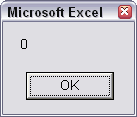
Instead one has to add all parameters one needs to the Connection string. Excel will determine the number of parameters from that string once it has been applied to the Connection property and then the Parameters collection becomes available to VBA. In the example below, a web query is added to a worksheet. The message box shows, that there are no parameters:
Sub Demo()
Dim oSh As Worksheet
Set oSh = ActiveSheet
With oSh.QueryTables.Add("URL;https://jkp-ads.com",
oSh.Range("A3"))
.BackgroundQuery = False
MsgBox .Parameters.Count
End With
End Sub
Result:
If the code shown above is changed to add a parameter in the connection string, things change:
Sub Demo2()
Dim oSh As Worksheet
Set oSh = ActiveSheet
'Make sure we already have a valid value for the parameter
Range("A1").Value="WebQuery"
With
oSh.QueryTables.Add("URL;https://jkp-ads.com/Articles/[""PageName""].aspx",
oSh.Range("A3"))
.BackgroundQuery = False
MsgBox .Parameters.Count
With .Parameters(1)
.SetParam
xlRange, oSh.Range("A1")
.RefreshOnChange = True
End With
End With
End Sub
Now the messagebox shows:
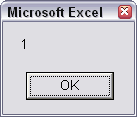
Note that in the code sample the parameter has been tied to a cell (SetParam method) and that the query is set to update when that cell changes (RefreshOnChange property set to True). The SetParam method is the only way to change the setting of the parameter object from e.g. prompt to Range and to change the range the query parameter uses as its source.
Conclusion
As this article shows, adding a parameter to a web query is relatively easy. The tricky part is the fact that you need to know that parameters can only be added through the connect string (the URL) by using a very specific syntax and that parameters can only be added by changing the connection string.
Frequently asked Questions
What are web queries in Excel and how do they work?
How do you set up a web query in Excel?
How can you make a web query URL dynamic using parameters?
What steps are needed to import web query results into an Excel worksheet?
How does Excel prompt for parameter values in a web query?
How can VBA be used to work with web query parameters?
Why can't parameters be added to the Parameters collection using the Add method in VBA?
How do you add parameters to a web query in VBA?
What is the purpose of the SetParam method in VBA for web queries?
What is the main challenge when adding parameters to web queries in Excel?
Comments