
Fixing Docking Of Windows In The VBE
If you're a VBA programmer like me, you're probably picky about your window arrangements in the Visual Basic Editor. Sometimes it messes things up and it can be a challenge to get those windows where you want them.
First of all, you have to choose whether or not you want them to dock
at all. Tools, options, Docking enables you to set that for each window
separately:
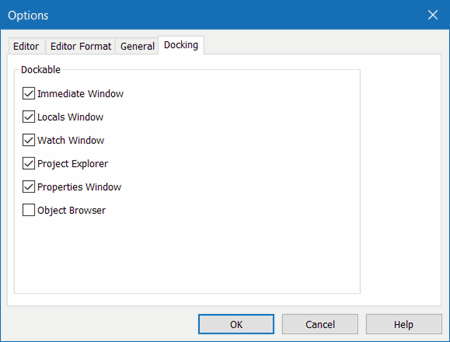
Fig 1, Tools, Options, Docking tab for the VBE.
Suppose your window looks like this:
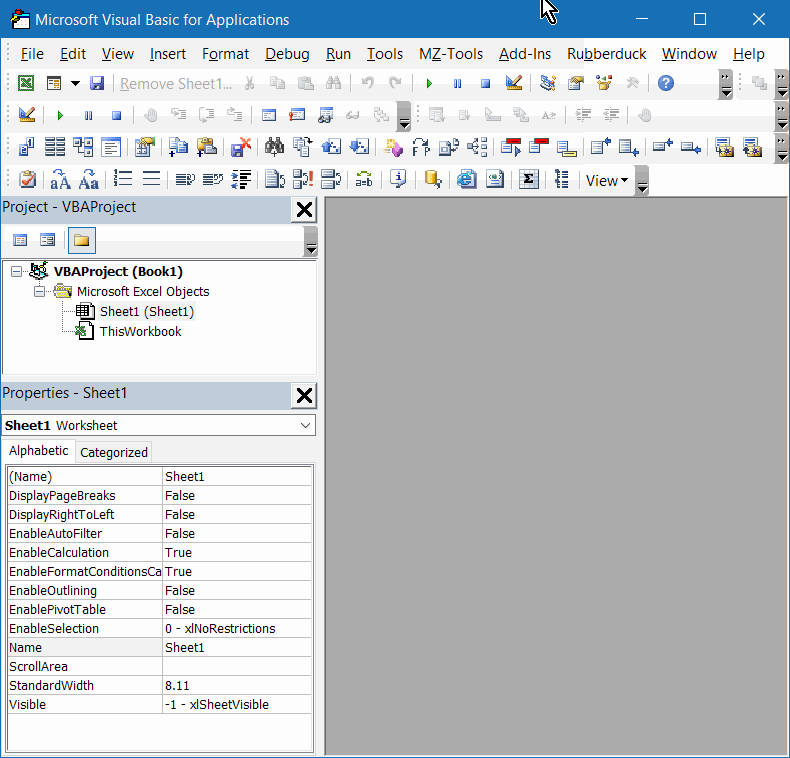
Fig 2, VBE window. Project explorer above Properties window.
and you want it to look like this:
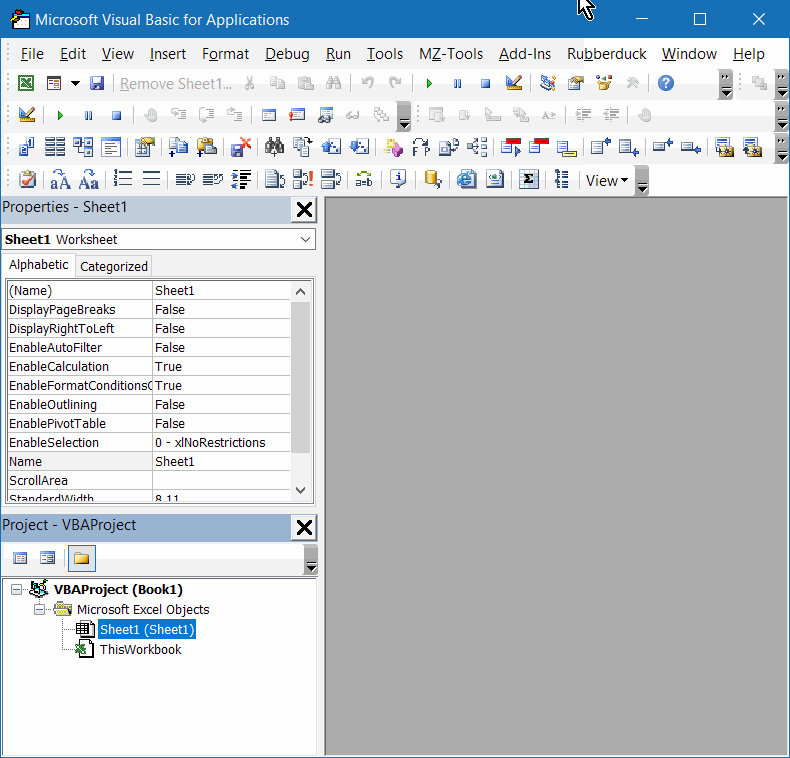
Fig 3, VBE window. Project explorer below Properties window.
What do you do?
- Double click the title bar of the project explorer (it will become a floating window)
- Drag the center of the window back to the area where the Properties window is.
- Keep moving until the thickness of the window border changes to a thin line
- Now move downwards until you're almost at the bottom of the VBE window. The shape of the window should change.
- Let go.
Since a picture says more than a 1000 words and a movie is worth a 1000 pictures, I've recorded my movements while doing these things. Move your mouse (or tap) on the two GIF's below to see them animate
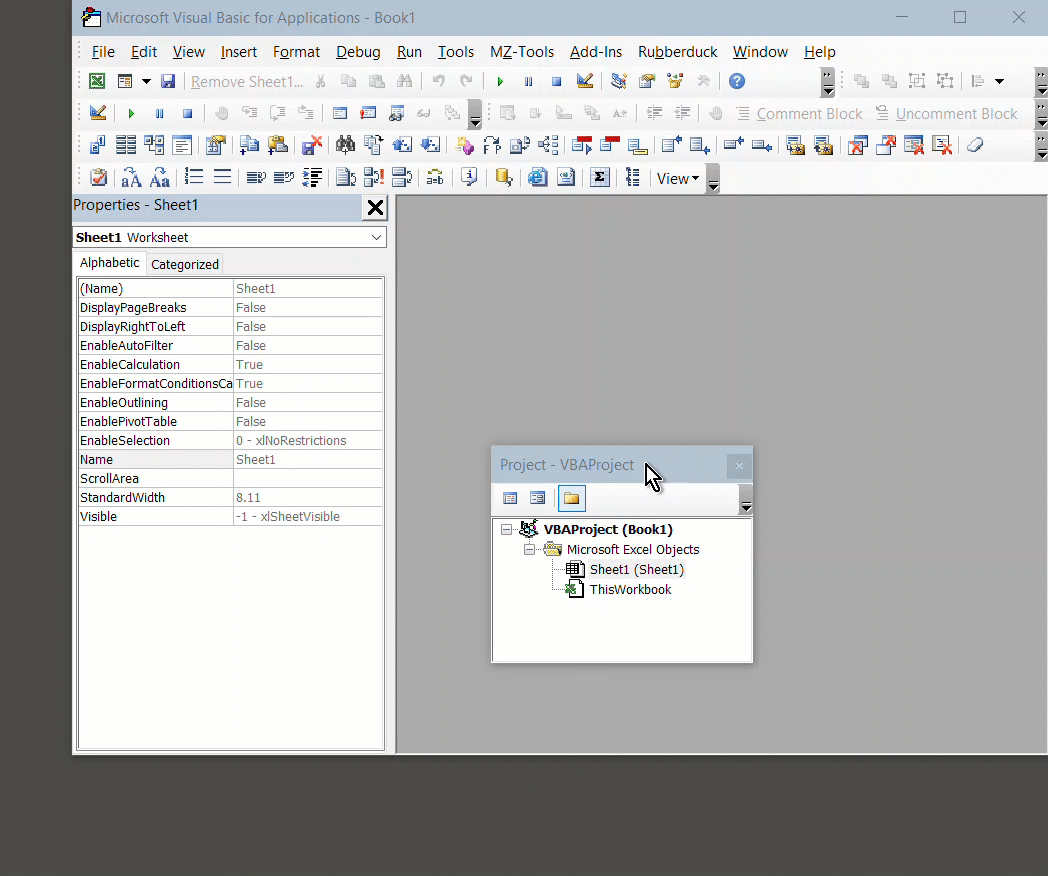
Docking the project explorer window
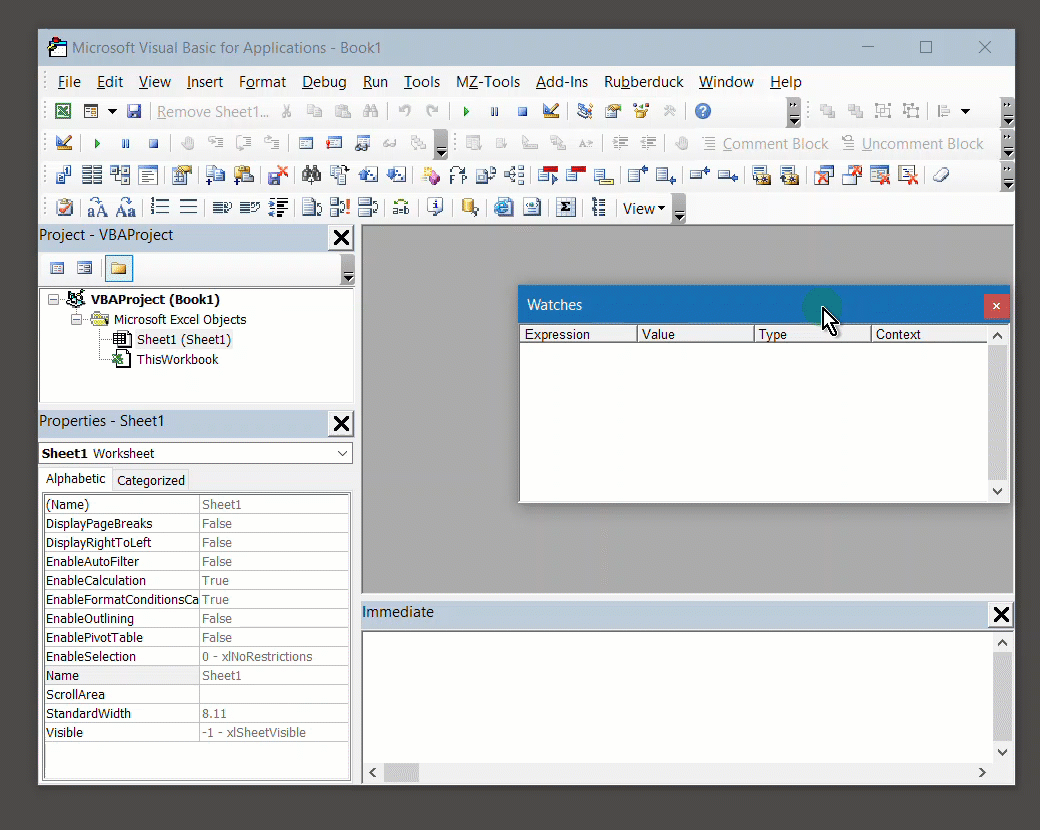
Docking
the watch window
Sometimes, one of the windows disappears completely. This may be caused by a change in screen resolution, but I've heard of inexplicable disappearances too. To fix that, follow these steps:
- Open the VBE and select Tools, Options
- Select the Docking tab and make sure the window in question has no checkmark in that tab
- Close the options window and select Window, Cascade.
- Now open the Options dialog again and check the docking property of the window you just (hopefully) got back.
- Drag it to where you want it docked.
Frequently asked Questions
How can I fix the docking of windows in the Visual Basic Editor (VBE)?
What steps do I take to change the position of the Project Explorer window in the VBE?
How do I enable or disable docking for individual windows in the VBE?
What should I do if a window disappears completely in the VBE?
How can I move a floating window back to a docked position in the VBE?
What visual cues indicate that a window is ready to be docked in the VBE?
How do I use the Tools, Options, Docking tab to manage window docking in the VBE?
What is the process to cascade windows in the VBE to recover missing windows?
Are there any animated guides available to help with docking windows in the VBE?
Why might windows disappear in the VBE and how can screen resolution affect this?
Comments