
Troubleshooting Excel problems
Many Excel users sometimes experience problems with their Excel: File not found errors, compile errors, crashes, Excel refusing to load, files which do not open, etcetera.
This is a list of things-to-try when Excel gives you problems.
Content
- Diagnostic tools
- Windows 10 related problems
- Startup problems or odd behaviour
- Opening Files From Desktop Or Explorer Fails
- Problems Caused by Anti Virus Software
- Problems caused by Temporary Files
- Problems Caused by Disabled Files
- VBA Issue
- Strange VBA issues
- Unable to record macros to Personal Macro workbook
- Other Resources
Diagnostic tools
Microsoft offers a tool that searches your Office installation for known problems. It is called the Microsoft Support and Recovery Assistant.
You can download and install the Microsoft Support and Recovery Assistant from here.
Windows 10 related problems
Windows 10 had several problems regarding Office. Microsoft has written an elaborate article on the known issues and their possible resolutions here: Known issues with Office and Windows 10
Excel shows errors during startup or behaves odd
Here are some things to try when you get error messages or unusual behavior of Excel while it is starting up
Open Excel in Safe mode
Start, Run,
"C:\Program Files\Microsoft Office\Office\Excel.exe" /Safe
Tip: You can also start Excel in safe mode by holding down the control key whilst you double-click the Excel icon.
Menu customizations
The safe switch ensures Excel starts without opening any addins or menu
customisations. If this works, chances are that your toolbar customisation
file is corrupt. Locate all files with extension .xlb and rename the extension(s)
to something like .old
Now try and start Excel again.
In Windows, the xlb file is found by entering this into the Windows Explorer address bar and pressing the Enter key:
%AppData%\Microsoft\Excel
Excel Add-ins.
If your error disappears, either an add-in or a (hidden) workbook that is loaded upon Excel's start might be bothering you.
Locate the offending file using the following steps:
- Click the File tab and select Options.
- Click the Add-ins tab
- In the dropdown near the bottom, select "Excel Add-ins" and click
Go:
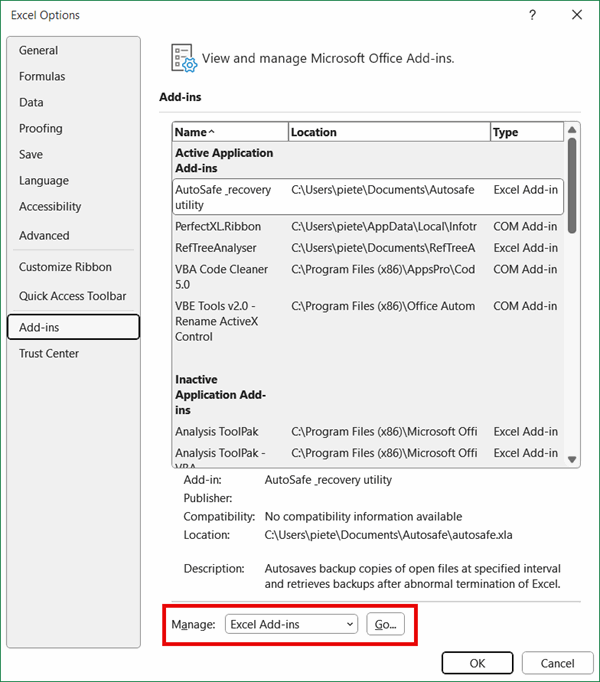
- This screen should open:
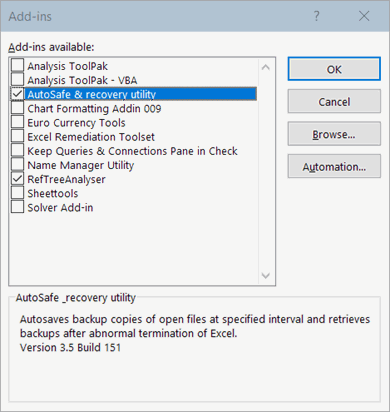
- Note which are checked
- Uncheck one
- Restart Excel
- If no error occurs, you've found the one causing the problem
Com Addins
Another type of addins are COM addins.
- Click the File tab and select Excel Options.
- Click the Add-ins tab
- In the dropdown near the bottom, select "COM Add-ins" and click Go
- Uncheck the first checked COM add-in and then reboot Excel and verify if your problem goes away.
- Repeat from step 1 if the problem is still there.
If your problem still persist, some COM addins are not shown in the userinterface and can only be unloaded from the registry. Check the registry, at this location:
HKEY_LOCAL_MACHINE\SOFTWARE\Microsoft\Office\Excel\AddIns\
Warning: Backup your registry before making ANY changes!!!
Not an add-in? It may be a (hidden) workbook causing trouble then.
Workbooks that load at startup.
- Find your XLSTART folder (in Windows Explorer, type %appdata%\Microsoft\Excel\XLSTART in the address bar and press the Enter key)
- Move all files out of that location
- Open them one by one (in Excel) and find the one with the error
- Move the others back.
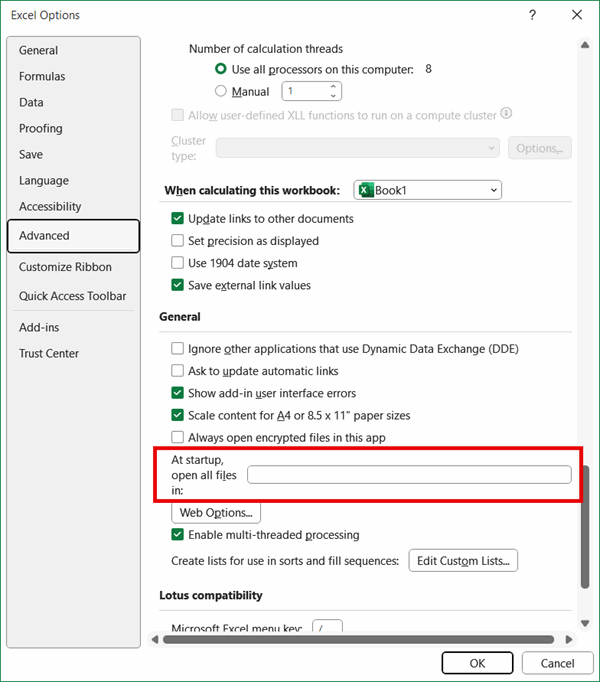
You can also check whether a folder has been set to load at startup and repeat the above for that folder.
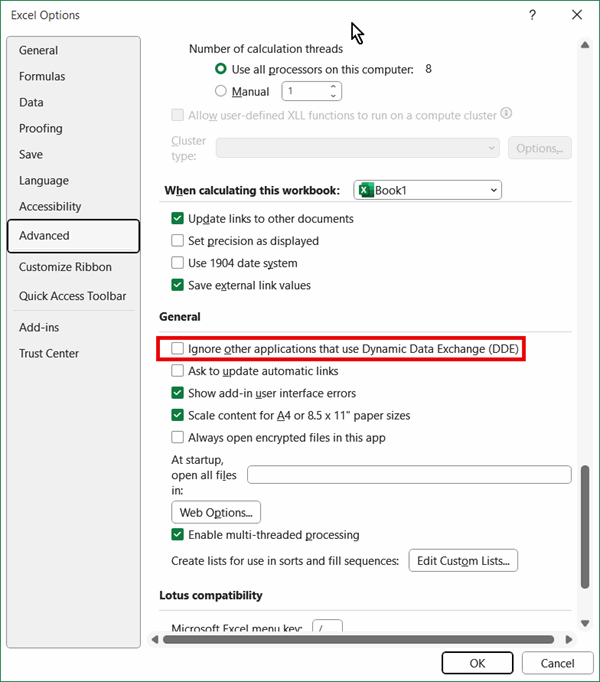
Click the File tab, select Options, and click the Advanced tab, scroll down to find the General section:
Remove Excel's registry entries
Sometimes all actions listed above don't help to resolve the problem. For various users, removing Excel's main registry entry in Windows Registry solved the problem.
Warning: All cautions about tampering with the registry apply!!
As a last resort, remove the entire root folder of Excel from the registry (it should be recreated when you launch Excel). This is the registry key to remove:
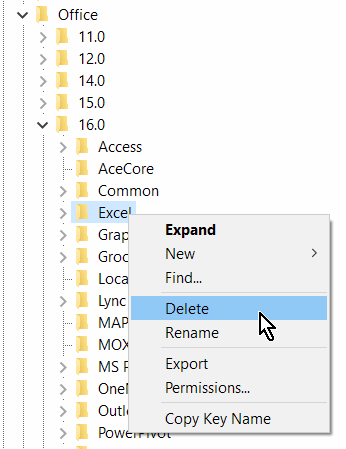
HKEY_CURRENT_USER\Software\Microsoft\Office\16.0\Excel
First find this key and export it to your desktop by right-clicking on the "Excel" entry in the folder tree and selecting Export.
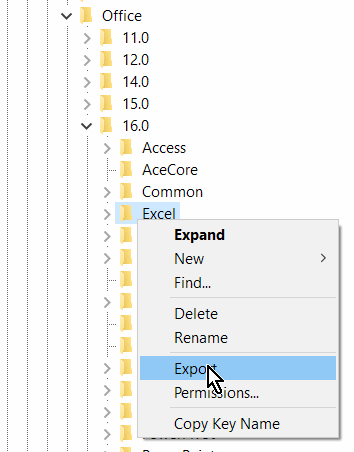
When the export is done, right-click the entry in the tree again and choose Delete:
Now restart Excel and see if that has helped.
Opening Files From Desktop Or Explorer Fails
Reregister Excel with Windows
If you have trouble loading Excel files by double-clicking, the shell registration for Excel may have to be re-written. How to do that depends on your Excel version.
To reset the File associations for Excel, run setup/repair (running the Office setup in Repair mode from "Programs and Features", aka "Add/Remove Programs").
Ignore other applications
Check in Tools, Options, General tab whether "Ignore other applications" is set. Uncheck it.
Trouble caused by antivirus software
NAV has shown to cause "Excel caused an invalid page fault in module VBE6.DLL". You might try disabling the Office plug in of NAV.
Trouble caused by corrupt temporary files
When a workbook contains controls from Excel's control toolbox temporary files are created in that folder. If such a temporary file is somehow corrupted it may prevent the workbook it belongs to from working normally and sometimes even causes Excel to crash. To try to avoind such errors, emptying your Temp folder may help.
files with the exd extension are reknown for causing issues
Select Start, run and type %temp% and hit OK to directly open your temp folder.
Disabled files
Files may have been disabled when Excel thought them to be the cause of a crash. If you have had a problem with opening a file, Excel may have labeled it as suspect.
Select the File tab (Office button in 2007) and click (Excel) Options. Click the Add-ins tab and use the dropdown:
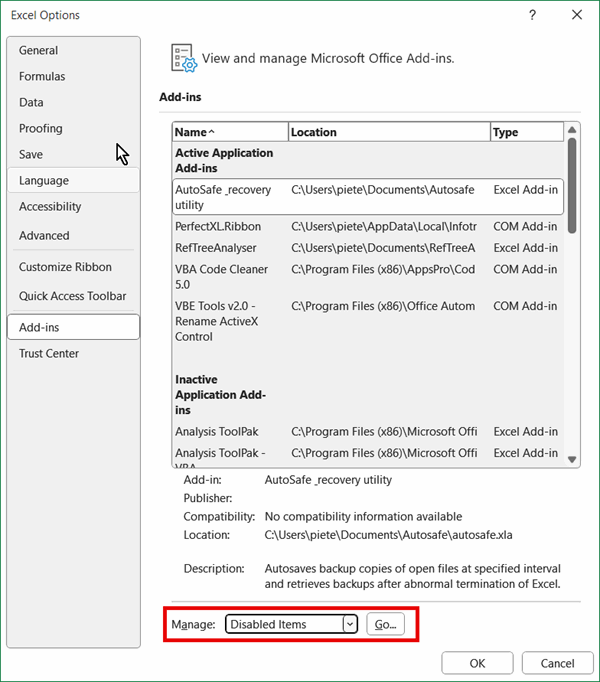
If the offending file is listed, select it and click Enable. The file you just enabled may of course cause Excel to crash again, click here to find some pointers on how to open corrupt Excel files.
VBA Issue
Sometimes Excel suddenly seems to think it has lost all macro's in a file. According to Microsoft, this issue happens when the compiled VBA project is corrupted. To get your VBA code back up and running, you can (temporarily) add a new registry key:
- With RegEdit, locate the key HKEY_CURRENT_USER\Software\Microsoft\Office\16.0\Excel\Options\
- Add a new DWORD value called ForceVBALoadFromSource
- Assign the value 1 to this DWORD
- Now try to open the workbook again and see if the VBA project loads
- After the VBA corruption issue is fixed, you can set the DWORD back to 0
Strange VBA issues
Sometimes the VBA project of a workbook starts to misbehave. You get compile errors on unexpected statements, the VBA project displays duplicates of itself or doesn't go away when the file is closed, code stops on breakpoints that are not set, and etcetera. One way to try to fix issues like these is to completely reset the VBA project.
Easiest is to clean the VBA project. There is a tool that does that, but it only works on 32 bit Office unfortunately: Excel VBA Code Cleaner Add-in.
If you don't have 32 bit Office, or cleaning doesn't help, you can try these manual steps to get rid of the debris in the VBA project:
- Open the xlsm file
- Save-as the file to the xlsx format
- Close the workbook
- Open the newly saved xlsx
- Open the old xlsm
- Open the VBE
- Drag each module, userform, class module from the xlsm to the xlsx
- Open each sheet (the ones that are really there) module, select all code and copy it
- Open the same sheet module of the xlsx file and paste the code
- Do the same for the ThisWorkbook module
- Make sure the same references in the xlsx project are checked as you have checked in the xlsm project
- Close the xlsm file
- Save-as the xlsx file to xlsm format (possibly using a new name too)
- Close the xlsm file and open it again
Personal Macro Workbook issues
Sometimes you receive errors while trying to record a macro, like "Personal Macro Workbook in the startup folder must stay open for recording". This may mean your Personal Macro Workbook is damaged. Here are some steps to recover your macros from the file:
- Close all Excel instances
- Check Task manager, details tab to see if there is no Excel.exe
- If there is, end its task
- Move the existing personal.xlsb from the XLSTART folder to somewhere else
- Rename the moved file to something like personal_old.xlsb
- Open Excel and record a macro to your personal macro workbook
- Close Excel and choose to save the personal macro workbook
- Open Excel again and open personal_old.xlsb
- Open the VBA editor and copy all modules (you can drag them) from your personal_old.xlsm to your new personal.xlsb
- Close Excel and save your Personal macro workbook
Other resources
Do you have one particular file that causes trouble? Check out this page.
http://www.cpearson.com/excel/StartupErrors.htm
http://www.contextures.com/xlfaqApp.html
Frequently asked Questions
What diagnostic tool does Microsoft offer to find known Office problems?
What are some known issues with Office on Windows 10 and where can I find their resolutions?
How can I troubleshoot Excel errors or odd behavior during startup?
How do I start Excel in Safe Mode to diagnose startup problems?
What should I do if Excel add-ins are causing errors at startup?
How can I fix issues with opening Excel files from Desktop or Explorer?
Can antivirus software cause Excel errors and how can I address this?
How do corrupt temporary files affect Excel and how can I fix related problems?
What should I do if Excel has disabled files that cause crashes?
Comments