
Creating an addin from an Excel macro
Pages in this article
- Preparations
- Book or add-in
- Menus
- Toolbars
- Limit access
- Protect code
- Initialise
- Save Settings
- UI Languages
- Setup
- Conclusion
Saving User Settings
Many applications use settings the user can change. It is convenient for the user if these settings are stored so they are used each time Excel is started.
There are a number of methods to achieve this. The first method demonstrated here is by using a text file. There are various options where to store this text file, like e.g. the Windows folder or the Documents and settings folder pertaining to the user currently logged on to the system. But the simplest location is where the add-in file itself is stored.
The sample code below stores the "settings" in a file called xlutil01.ini in that location:
Listing 5
Dim msInipath As String
Public gsLanguage As String
Public gsMessage As String
Sub ReadIni()
Dim lFile As Long
lFile = FreeFile
'Use folder the add-in is stored in
msInipath = ThisWorkbook.Path & "\"
On Error Resume Next
Open msInipath & "xlutil01.ini" For Input As #lFile
'If File does not exist, create it
If Err = 53 Then
CreateIni
Exit Sub
End If
Input #lFile, gsLanguage, gsMessage
Close #lFile
bVarsOK = True
On Error GoTo 0
End Sub
Sub CreateIni()
'Create ini file using default settings
gsLanguage = "English"
gsMessage = "Your default message."
WriteIni
End Sub
Sub WriteIni()
Dim lFile As Long
lFile = FreeFile
Open msInipath & "xlutil01.ini" For Output As #lFile
Write #lFile, gsLanguage, gsMessage
Close #lFile
End Sub
Sub ChangeSettings()
If Not bVarsOK Then ReadIni
gsLanguage = InputBox("Enter the language", "xlUtil01", gsLanguage)
gsMessage = InputBox("Enter your message", "xlUtil01", gsMessage)
If gsLanguage = "" Or gsMessage = "" Then
ReadIni
MsgBox "Changes cancelled!", vbOKOnly + vbInformation
Exit Sub
Else
WriteIni
End If
End Sub
Another method with which settings can be saved is by using the registry. There are two VBA functions for this goal: GetSetting and SaveSetting. These will create entries to write to in the following registry location:
"My Computer\HKEY_CURRENT_USER\Software\VB and VBA Program Settings\".
The code below demonstrates the mechanisms.
Listing 6
Public gsShortCutKey As String 'Holds the shortcutkey
Public Const gsRegKey As String = "xlUtilDemo" 'The registry entries' name
Sub GetSettings()
'Get the shortcutkey, use "n" if anything goes wrong
gsShortCutKey = GetSetting(gsRegKey, "Settings", "ShortCutKey", "n")
End Sub
Sub SaveSettings()
'Save the shortcutkey to the registry
SaveSetting gsRegKey, "Settings", "ShortCutKey", gsShortCutKey
End Sub
Sub Deletesettings()
'Remove all registry entries belonging to this application
DeleteSetting gsRegKey
End Sub
Sub ChangeSettings()
GetSettings
gsShortCutKey = InputBox("Please enter a new shortcutkey", , gsShortCutKey)
If gsShortCutKey = "" Then Exit Sub
gsShortCutKey = Left(gsShortCutKey, 1)
SaveSettings
End Sub
To remove the registry entry, run the sub "DeleteSettings"
The figure below shows the results in the registry
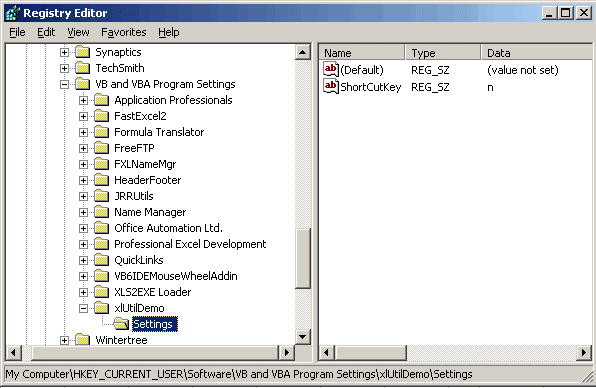
Screenshot of the register editor showing the new entry.


Frequently asked Questions
How can user settings be saved in an Excel add-in?
What is the simplest location to store a settings text file for an Excel add-in?
How does the sample code store settings in a text file?
What VBA code is used to read settings from an ini file?
How can default settings be created if the ini file does not exist?
What VBA functions are available to save settings in the Windows registry?
Where in the Windows registry are VBA settings stored?
How can you save a shortcut key setting using VBA registry functions?
How do you remove registry entries created by the add-in?
What happens if the user cancels changes when modifying settings?