
Creating an add-in from an Excel macro
Pages in this article
- Preparations
- Book or add-in
- Menus
- Toolbars
- Limit access
- Protect code
- Initialise
- Save Settings
- UI Languages
- Setup
- Conclusion
Use A Workbook Or An Add-in
Besides personal.xlsb, other workbooks may be placed in the XLSTART folder. All files placed in this location will be opened by Excel automatically and macro's of files placed in this special folder usually are enabled by default.
One could therefore place the new macro workbook in that folder to ensure the macros are available to us in each Excel session. There is one disadvantage however. As soon as other files than personal.xls are placed in that location, Excel will no longer open a blank workbook when you start it.
The alternative method to make the code available to each session is by creating an add-in from the macro workbook. add-ins are available through Excel's Tools, add-ins menu.
An add-in is nothing more than a normal workbook, with two special
characteristics:
1. Its sheets are invisible
2. Once setup, it is available in the Tools, add-ins list. (from which
the add-in can easily be set NOT to load, whereas a normal workbook
located in the XLSTART folder has to be moved to a different folder when
it isn't needed).
Whether an add-in or a normal workbook is to be preferred, depends on
the purpose of the utility.
When worksheets of the utility workbook need to be shown to the user, a
workbook is the way to go. With many utilities however this is not the
case and it may be better to use an add-in.
Saving a workbook as an add-in
Creating an add-in is a fairly simple process, involving these simple steps:
- Open the workbook and select a normal worksheet (make sure a cell is selected).
- Choose File, Save-as
- In the File, save-as dialog, click the dropdown list at the bottom of the dialog and scroll all the way down to find "Microsoft-Excel Add-In (*.xla)"(see figure below), or for Excel 2007 and up: "Microsoft-Excel Add-In (*.xlam)"
- Be careful now, Excel has now tried to be helpful and has changed the active folder you are saving to to the add-ins folder. If that is not the one you want, navigate to the folder you do need the add-in saved to. If you click the Back button at the top of the dialog, it'll take you back to the original folder.
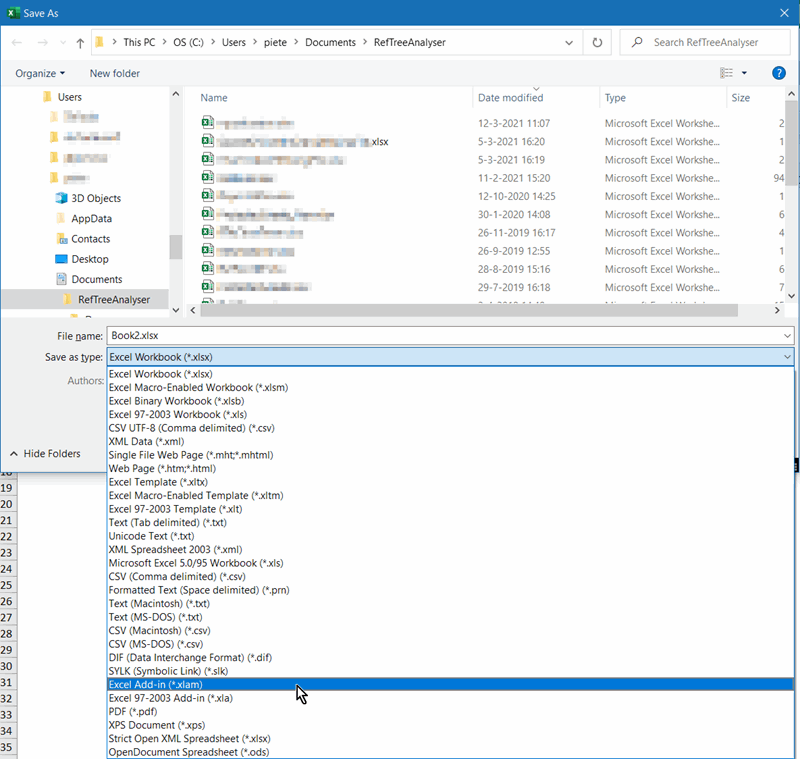
Save-As Dialog with add-in selected
- After typing the add-ins name, hit Save.
It is to be advised to do future editing work in the source workbook, rather than in the add-in itself. Some Excel versions will not reliably save an add-in from the Visual Basic Editor.


Frequently asked Questions
What is the advantage of placing macro workbooks in the XLSTART folder?
What is a disadvantage of placing files other than personal.xls in the XLSTART folder?
How can you make macros available in every Excel session without using the XLSTART folder?
What are the two special characteristics of an Excel add-in?
When should you prefer using a workbook over an add-in for your utility?
What are the basic steps to save a workbook as an add-in?
What file types are used to save Excel add-ins in different Excel versions?
Why is it advised to do editing work in the source workbook rather than the add-in itself?
How can you access add-ins in Excel after creating them?
What happens to the active folder in the Save-As dialog when saving a workbook as an add-in?